
What is Docker Manager?
Docker Manager is a web interface for the Docker servers you run yourself. It runs as one container next to your apps and gives you one place to start containers and Compose stacks, publish them on your own domains with HTTPS, run PostgreSQL databases, watch logs and metrics, and keep everything secure.
It’s free and open source (MIT licensed), with no subscriptions, licence fees or feature gates. It’s built for developers, homelab owners and small teams who want a complete tool without running a platform.
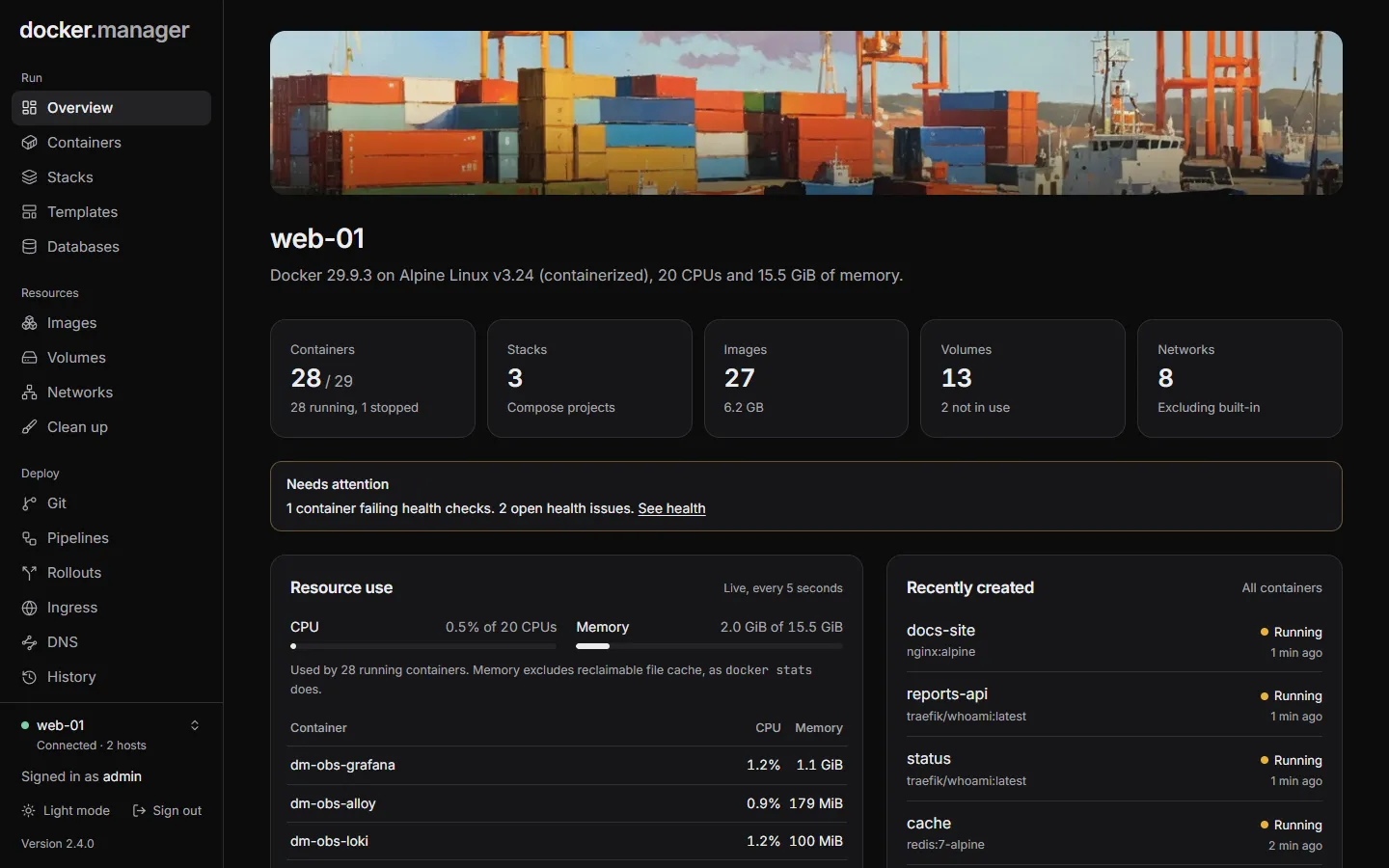
What you can do with it
Section titled “What you can do with it”Run
- Containers: start, stop, restart, read logs, run commands, watch CPU and memory, and change settings safely (the original is put back if the new container doesn’t start).
- Compose stacks: create, edit and redeploy, with every deploy kept as a version you can go back to. Stacks started outside Docker Manager are found and can be imported without restarting anything.
- Templates for 53 popular apps, and images, volumes and networks with a file browser for volumes and a clean-up page.
Deploy and publish
- Git repositories and pipelines that build and deploy on push.
- Rollouts: blue/green and canary releases with tests, live error-rate checks and automatic rollback.
- Ingress: your containers on your own domains, with Let’s Encrypt certificates and optional sign-in pages.
- DNS: host your domains’ DNS on the server, like Route 53.
Data
- PostgreSQL databases with secure defaults, a SQL console, scheduled backups and copies to S3.
- A private Docker registry.
Watch and secure
- Health monitoring with email alerts.
- Observability: Grafana, Prometheus, Mimir, Loki and Tempo, already connected.
- Security scanning with Trivy, Docker Scout and Docker Bench for Security, and image rules that allow or block images.
Administer
- Several Docker hosts from one place: the local one, and remote ones over TLS or SSH.
- Users, groups and per-host permissions, a history of changes with undo, and an activity log.
- Configuration as code: describe the whole setup in one YAML file and keep it in git.
How it works
Section titled “How it works”Docker Manager talks to Docker through its API. On the server it runs on, that’s the Docker socket
(/var/run/docker.sock) mounted into its container; other servers are reached over TLS or SSH. Everything it
creates is an ordinary Docker container, network or volume, so docker ps and docker compose keep working as
usual, and you can stop using Docker Manager at any time without touching your apps.
Its own data (users, settings, history, database backups) lives in one SQLite database in a Docker volume.
Get started
Section titled “Get started”- Install it with a short compose file.
- Sign in and take a first look around.
- Start something: a template, a container or a Compose stack.