
Registries
The Registries page has two tabs:
- Sign-ins: credentials for private images on Docker Hub, GitHub, GitLab, cloud registries and others.
- Your own registry: a private registry for your own images, run on the server (administrators).
Sign-ins
Section titled “Sign-ins”Public images need no sign-in. To pull private images, press Add registry and choose the Type:
| Type | What to enter |
|---|---|
| Docker Hub | Username and an Access token. |
| Other registry (GitHub, GitLab, Harbor…) | The Registry address (such as ghcr.io), Username, and Password or token. |
| Amazon ECR | The registry address and a token from aws ecr get-login-password. ECR tokens expire after 12 hours: paste a fresh one when pulls start failing. |
| Google Artifact Registry | The registry address (such as europe-docker.pkg.dev) and a service account JSON key. |
| Azure Container Registry | The registry address, Client ID, Client secret and optional Tenant ID. |
Sign-ins are used automatically when an image comes from that registry, and only for it: credentials are only sent to that exact host. Passwords and tokens are stored encrypted. Use this registry turns a sign-in off without deleting it.
A Docker Hub sign-in also lets Docker Scout scan images.
Your own registry
Section titled “Your own registry”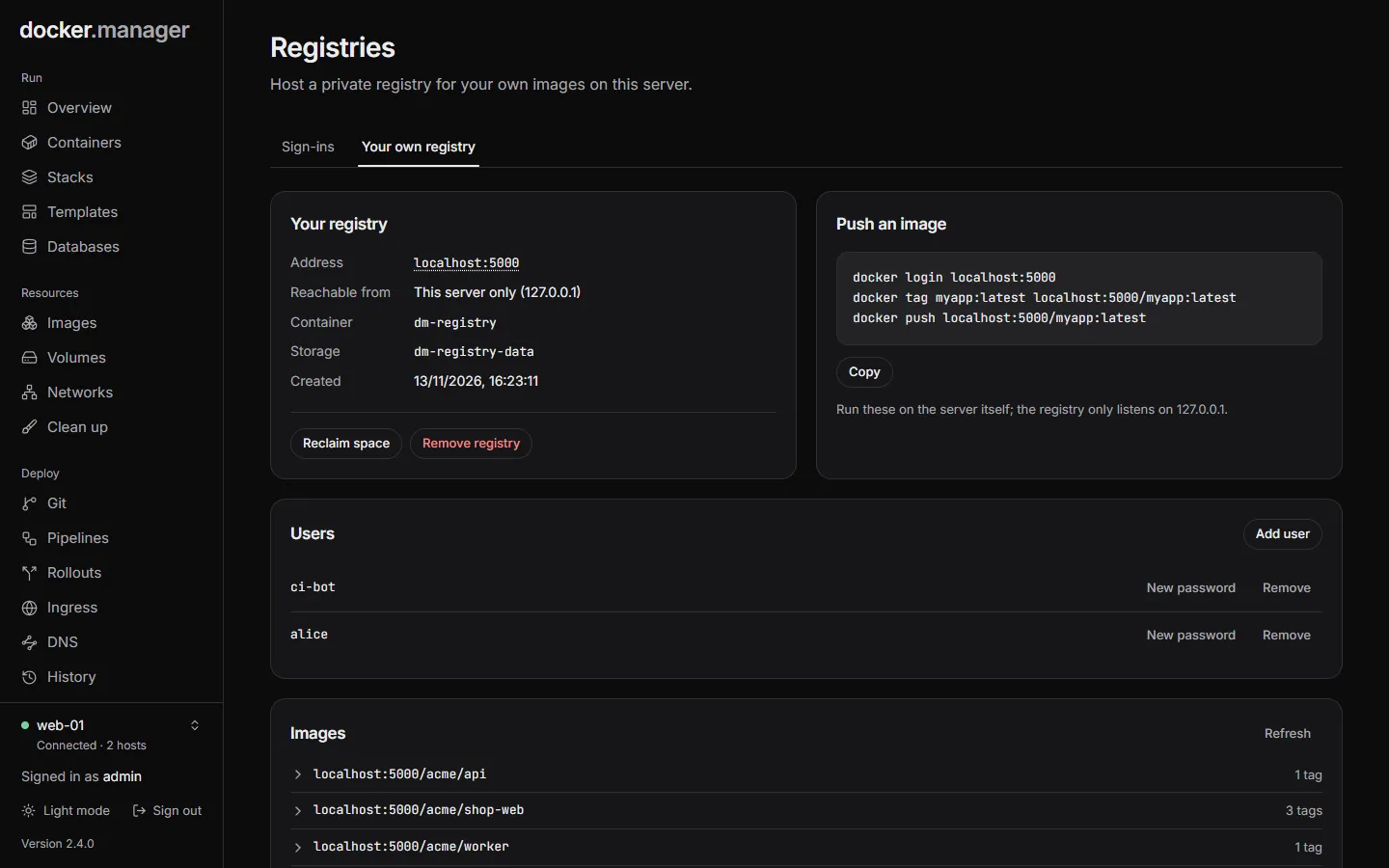
Your own registry runs the official registry:3 image (CNCF Distribution) on the selected host. Choose where it
is Reachable from:
- Anywhere, over HTTPS: served through ingress on a Hostname you choose, such as
registry.example.com, with a Let’s Encrypt certificate and no upload size limit. Ingress must be turned on, the hostname’s DNS must point at the server, and ports 80 and 443 must be reachable. - This server only: published on a Port on
127.0.0.1, which Docker accepts without HTTPS. Enough when images are built and run on the same machine.
Add the First user and a Password (at least 10 characters), then press Create registry. Docker Manager adds the registry under Sign-ins with its own account, so your deployments can pull from it straight away.
Push an image
Section titled “Push an image”The registry’s page shows the commands to push, with its address filled in:
docker login registry.example.comdocker tag myapp:latest registry.example.com/myapp:latestdocker push registry.example.com/myapp:latestWith This server only, run them on the server itself, since the registry only listens on 127.0.0.1.
Users and images
Section titled “Users and images”- Pushing and pulling always need a sign-in. Add user adds someone who can push and pull, and New password changes a password. Changes take effect right away, without restarting the registry. Passwords are stored as bcrypt hashes.
- Images lists the repositories and their tags. Deleting a tag frees its space once you Reclaim space, which deletes the layers no tag uses any more. The registry stops for the few seconds this takes, so don’t run it during a push.
Images are stored in the dm-registry-data volume.
Remove the registry
Section titled “Remove the registry”Remove registry removes the registry container, its route and its sign-in entry. Deployments that pull from it will
fail. The images are kept in the dm-registry-data volume, and a new registry picks them up again, unless you tick
Also delete the stored images.
In the configuration file
Section titled “In the configuration file”Sign-ins go under registries and your own registry under hostedRegistries in the
configuration file. See the
reference.