
First steps
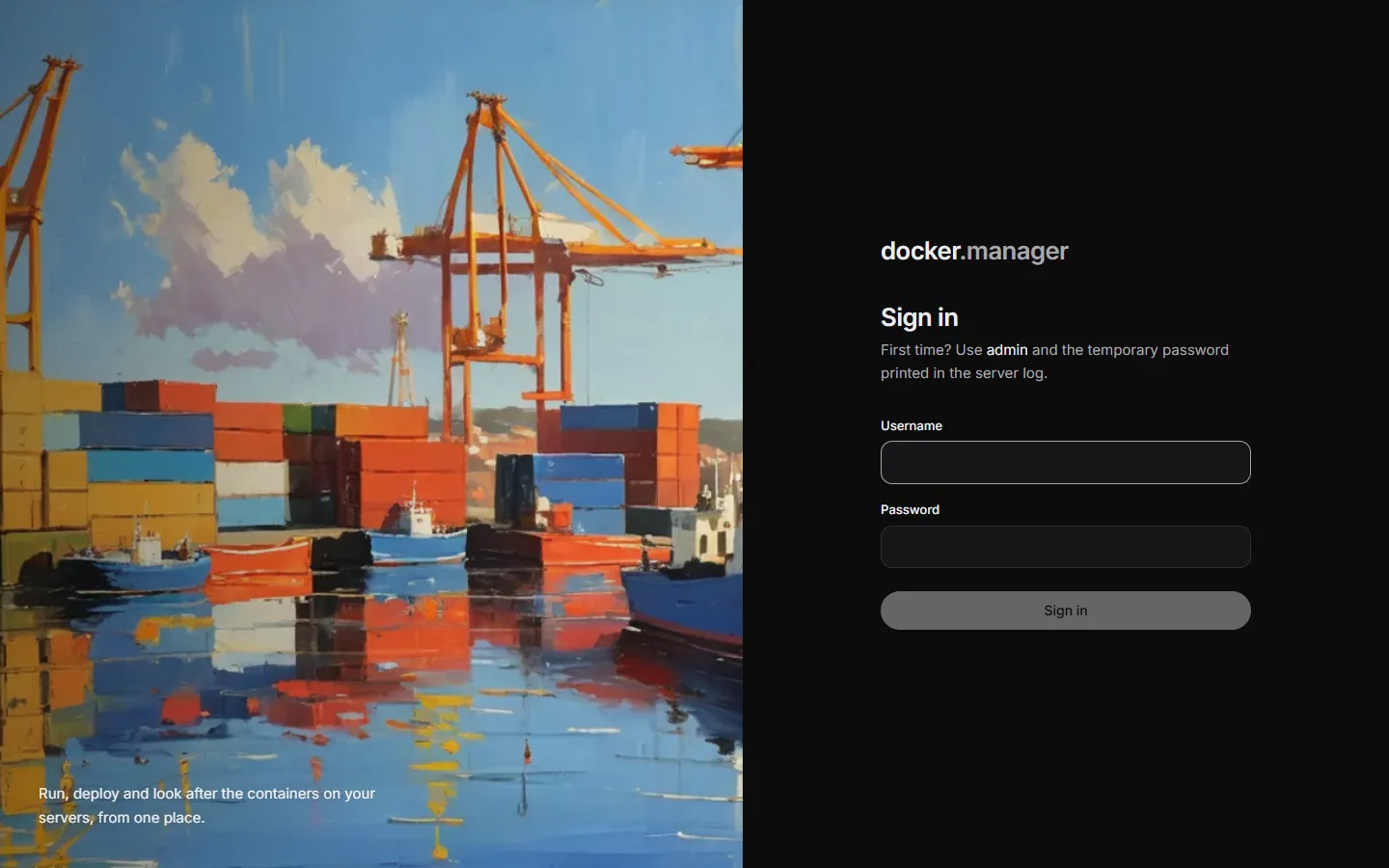
Sign in for the first time
Section titled “Sign in for the first time”The first user is called admin. Its temporary password is printed in the container’s log on first start:
docker logs docker-managerLook for the lines that say INITIAL ADMIN ACCOUNT CREATED:
========================================INITIAL ADMIN ACCOUNT CREATED========================================Username: adminTemporary Password: ...- Open Docker Manager in your browser (port 8080 unless you changed it).
- Enter
adminand the temporary password, and choose Sign in. - On Choose your password, enter the temporary password again, then your own password twice (at least 8 characters; a passphrase of a few words is easy to remember and hard to guess).
- If your account has no address that can receive mail, which is the case for
admin(it starts asadmin@localhost), you can enter Your email here too. Alerts, like a failed backup, go to it. - Choose Set password and continue.
Find your way around
Section titled “Find your way around”The sidebar groups everything into five areas:
| Group | Pages |
|---|---|
| Run | Overview, Containers, Stacks, Templates, Databases |
| Resources | Images, Volumes, Networks, Clean up |
| Deploy | Git, Pipelines, Rollouts, Ingress, DNS, History |
| Watch | Health, Observability, Security, Activity |
| Setup | Hosts, Registries, Image rules, Users, Settings, Configuration |
Some pages are only shown to administrators: Databases, Clean up, DNS, Observability, Security, Activity, Users and Configuration.
At the bottom of the sidebar you’ll find the selected Docker host, a light and dark mode switch, your account, and the version of Docker Manager you’re running.
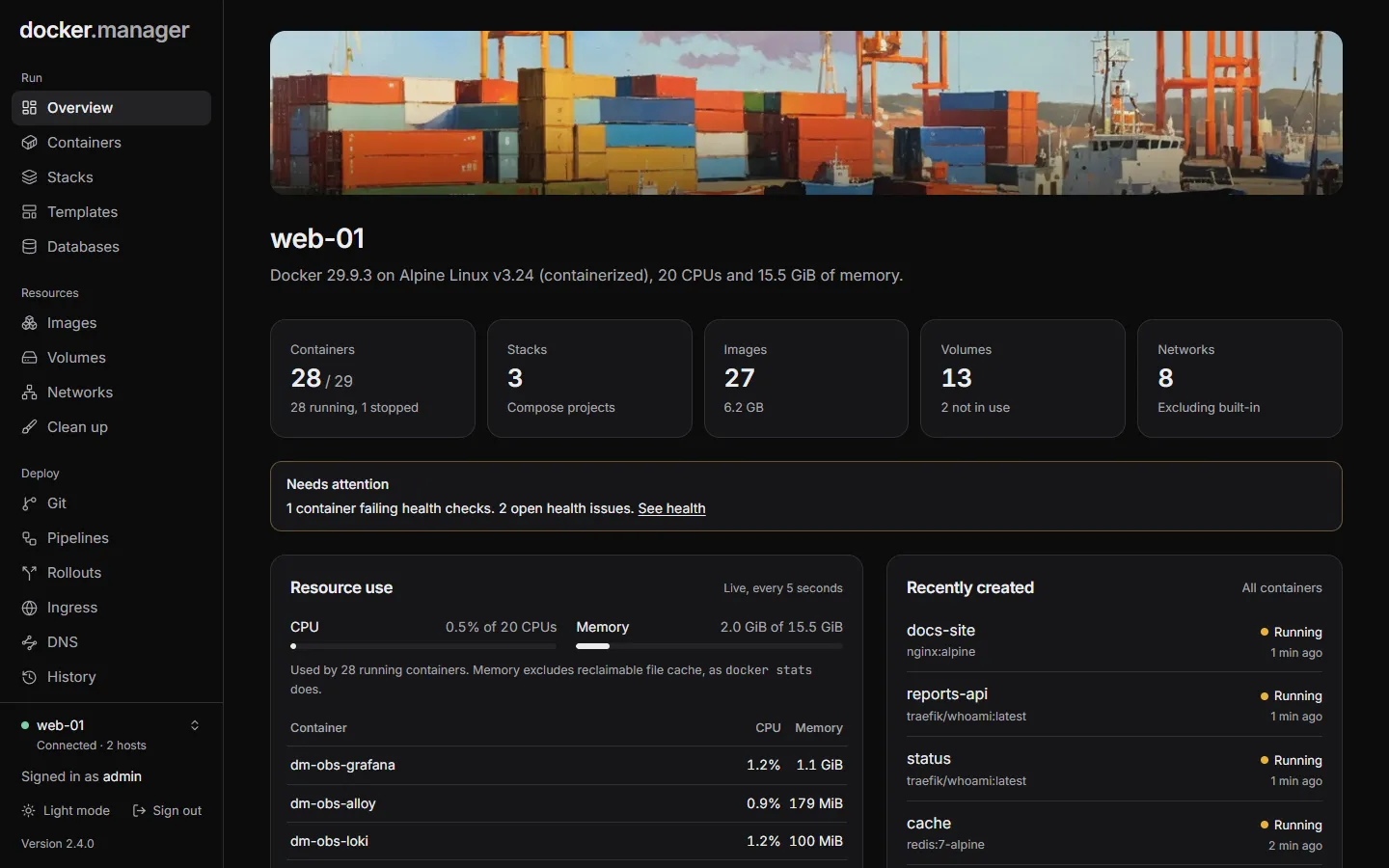
The overview
Section titled “The overview”Overview shows the selected host at a glance: its Docker version, operating system, CPUs and memory; how many containers, stacks, images, volumes and networks it has; live CPU and memory use (updated every 5 seconds) with the busiest containers; and the most recently created containers. If containers are failing their health checks, a Needs attention notice links to Health.
Switching hosts
Section titled “Switching hosts”Docker Manager can look after several Docker servers. Most pages show the host selected at the bottom of the sidebar; pick another one there to switch. Hosts explains how to add remote servers.
Your account
Section titled “Your account”Choose your name at the bottom of the sidebar to open Your account:
- Password: change your password. Your other sessions are signed out when you do.
- Sessions: Sign out everywhere signs you out on every browser and device, including this one. Use it if you signed in somewhere you don’t trust.
What to do next
Section titled “What to do next”- Start an app from a template, or create a container or a Compose stack.
- Add other people and give them only the access they need.
- Set up email so Docker Manager can tell you when something goes wrong.
- Publish an app on your own domain with Ingress.