
Images, volumes and networks
The Resources group in the sidebar has the building blocks behind your containers: Images, Volumes, Networks and Clean up.
Images
Section titled “Images”Images lists the images on the selected host: the templates containers are created from. Use Show to see All, In use or Not in use, and search by name.
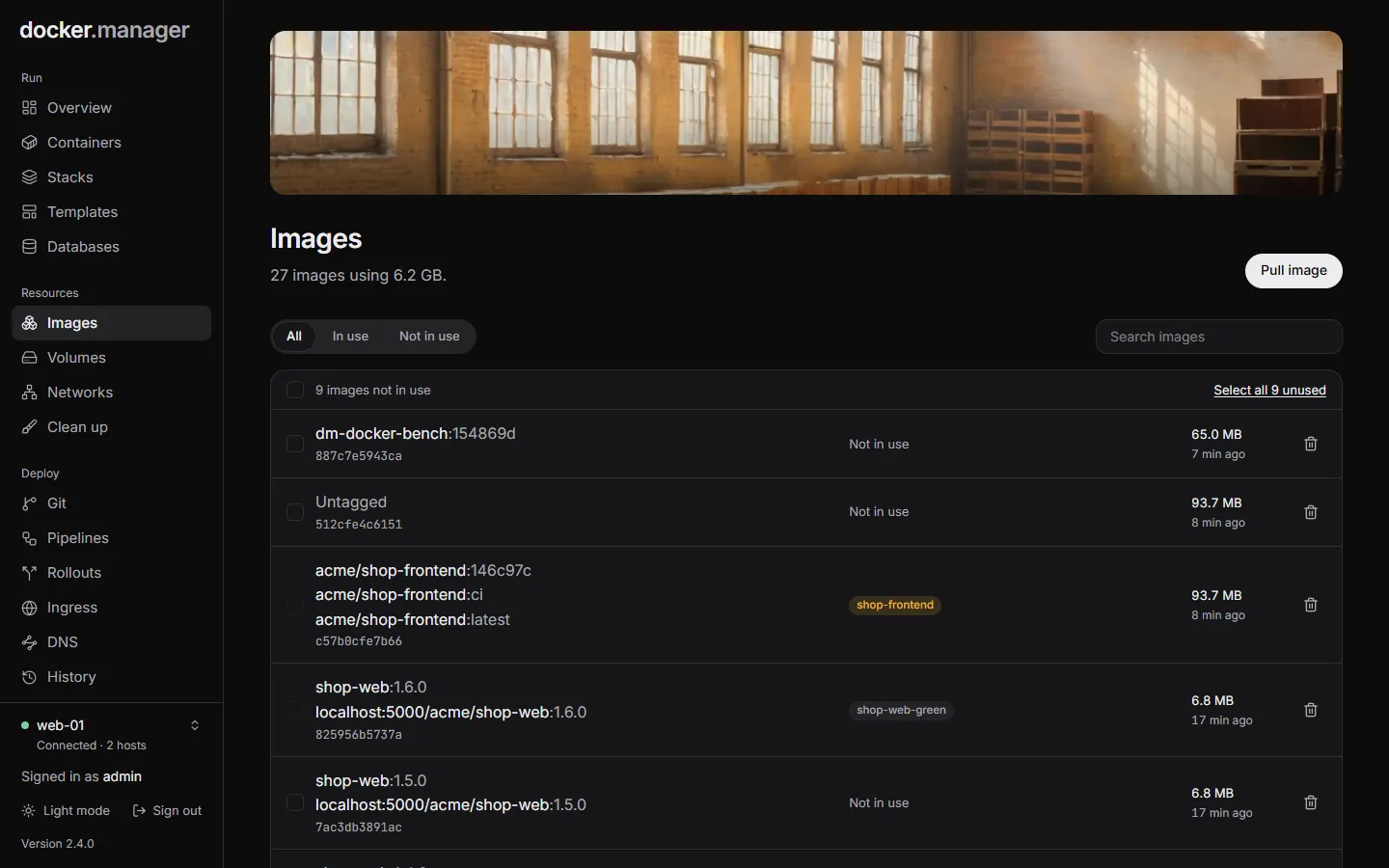
To pull an image: choose Pull image, enter its name (for example nginx:1.29-alpine) and choose Pull.
Saved sign-ins from Registries are used for private images. Large images can take a few minutes.
To delete images: use Delete image on one, or select several and delete them together. Select all … unused picks every image no container uses. An image that a container uses can’t be deleted; remove those containers first. Deleted images can be pulled again later.
Volumes
Section titled “Volumes”Volumes are storage that outlives containers: databases and uploads belong here. Each volume shows whether a container uses it.
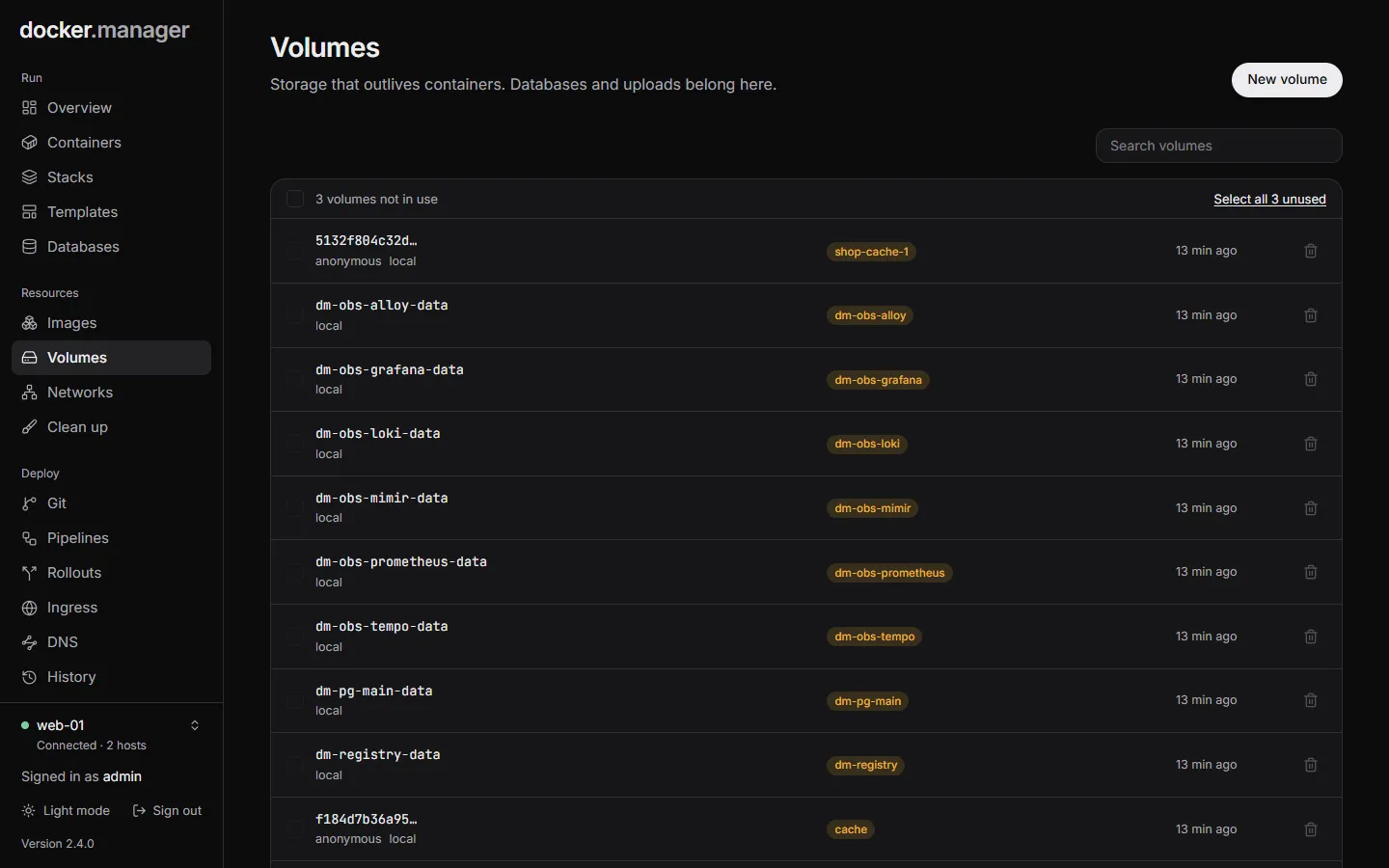
- New volume creates an empty volume. Containers also create volumes when they ask for them.
- Delete volume deletes a volume and everything stored in it. This can’t be undone. Select several, or Select all … unused, to delete them together.
Browse a volume’s files
Section titled “Browse a volume’s files”Administrators can choose Browse files on a volume to look inside it. (Browsing is for administrators only, because volumes hold every app’s data, including passwords and databases.)
The browser opens Read-only. You can move through folders, filter the current folder, open text files (the
first 512 KB are shown), download a file, and download a folder or the whole volume as a .tar file.
To change files, choose Read-only and confirm Allow changes. The button turns into Changes on, and you can Upload files (up to 100 MB each), create a New folder and delete files and folders. Apps using the volume see changes straight away, and deleted files can’t be brought back.
Networks
Section titled “Networks”Networks lists the Docker networks on the host. Containers on the same network can reach each other by container name. Docker’s own networks are marked built-in.
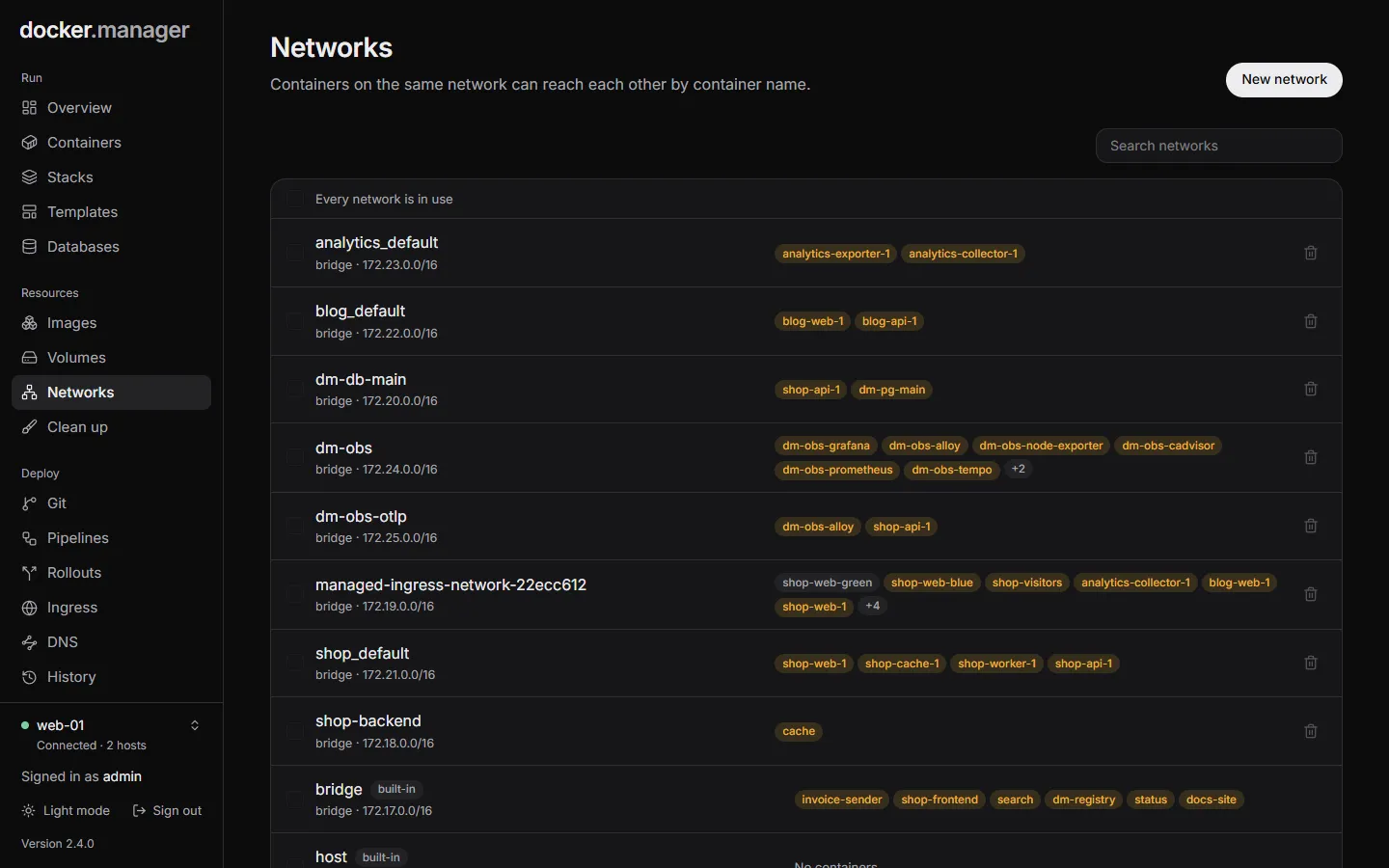
- New network creates a bridge network. Attach containers to it in their settings (the Network field on a container’s settings).
- Delete network deletes a network. Built-in networks, and networks with containers connected, can’t be deleted. Select all … unused picks every network without containers.
Some features create their own networks, for example Ingress (managed-ingress-network-*),
Databases (dm-db-*) and Observability (dm-obs-*).
Clean up
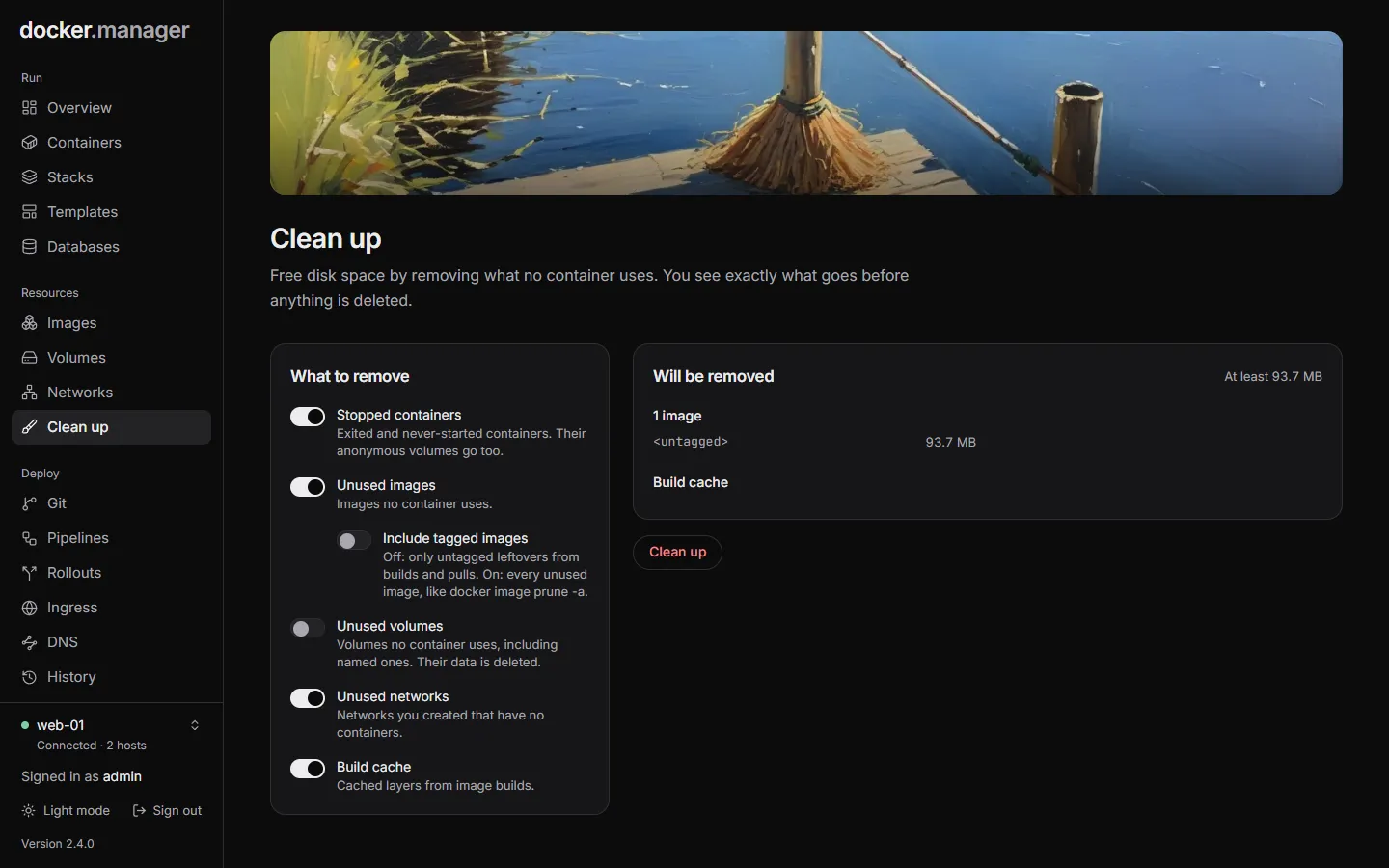
Section titled “Clean up”Clean up (administrators only) frees disk space by removing what no container uses. You see exactly what goes before anything is deleted.
-
Under What to remove, choose what to include:
Choice What it removes Stopped containers Exited and never-started containers. Their anonymous volumes go too. Unused images Images no container uses. With Include tagged images off, only untagged leftovers from builds and pulls; on, every unused image, like docker image prune -a.Unused volumes Volumes no container uses, including named ones. Their data is deleted. Unused networks Networks you created that have no containers. Build cache Cached layers from image builds. -
Check the list under Will be removed, which also shows at least how much space it frees.
-
Choose Clean up and confirm.
The overview tells administrators when stopped containers, untagged images or unused volumes are taking up space, with a link to this page.