
Rollouts
Rollouts release new versions of an app without downtime. Each new version starts next to the current one, is tested, and only then gets visitors. If it misbehaves, visitors go back to the previous version automatically.
A rollout owns an address on ingress and two containers, NAME-blue and NAME-green. One
serves visitors; each new version starts in the other one.
Before you start
Section titled “Before you start”Rollouts need ingress turned on for the host. Creating, changing and deleting rollouts is for administrators; releasing, approving, promoting and rolling back follow each user’s permissions.
Create a rollout
Section titled “Create a rollout”Open Rollouts and press New rollout.
Rollout: a Name, the Docker host and an optional Description.
How new versions reach visitors: the Strategy.
- Blue/green moves all visitors at once, then watches the new version for a while with the old one still running.
- Canary moves a growing share of visitors at each step (for example 10%, 25%, 50%), then everyone.
Address: where visitors reach the app.
- New address: a Hostname (point its DNS at this server), a Path, and HTTPS with a free Let’s Encrypt certificate. The route is created at the first release, once a tested version exists.
- Take over an existing route: choose a route that sends visitors to a container. Its container becomes the current version. The first release starts next to it, and the old container is stopped (not removed) once the new one serves everyone.
- Preview address (optional): always shows the version being released, so people can try it before approving. After a release it shows the current version.
Container: how each version runs.
- Container name: the base name; versions run as
NAME-blueandNAME-green. - Port the app listens on, Restart, Environment and Volumes. Both versions mount the same volumes while they run side by side.
- Other networks: the ingress network is always joined; add others to reach a database, for example. No ports are published on the server: visitors come in through the proxy.
- Health path: must answer with a status from 200 to 399 before the new version counts as up, and keeps being checked while it has visitors. Time to start (seconds) is how long it may take (180 by default).
Tests before visitors see it
Section titled “Tests before visitors see it”Tests run in order against the new version while visitors still use the current one. If one fails, the new version is stopped and nothing changes for visitors. With no tests, only the health path is checked.
| Kind | What it does |
|---|---|
| HTTP check | Requests a page of the new version. Set the Path, Expected status (such as 200, 2xx or 200-299; default 200-399, redirects are followed), Page contains and Tries (a few seconds apart, 3 by default). |
| Command | Runs a script with /bin/sh in any Image (such as curlimages/curl:latest). Exit code 0 passes. |
| Pipeline | Runs one of your pipelines. Its steps get TARGET_URL and join the network the new version is on. It must succeed. |
| Approval | Waits until someone presses Approve (or Reject). Add a preview address so they can look first. Give up after (seconds): empty or 0 waits until someone decides. |
Command scripts can use TARGET_URL, TARGET_HOST, TARGET_PORT, PUBLIC_HOSTNAME, RELEASE_IMAGE,
RELEASE_NUMBER and ROLLOUT_NAME. For example:
curl -fsS "$TARGET_URL/api/health" | grep -q '"ok"'Moving visitors over
Section titled “Moving visitors over”For Canary:
- Share of visitors at each step (%): for example
10, 25, 50, then everyone. - Length of each step (seconds).
- Keep each visitor on one version: chosen by address and browser, so a visitor doesn’t flip between versions.
Testers can set the cookie
dm_variant=canary(orstable) to pick one.
For Blue/green, Watch the new version for (seconds) after the switch. The old version keeps running meanwhile; 0 skips watching.
Automatic rollback
Section titled “Automatic rollback”While the new version has visitors, the proxy logs which container answered each request. Every 10 seconds, the new version’s share of failed answers (status 500 or more), its average response time and its health path are checked.
With Send visitors back to the current version when the new one misbehaves on, visitors go back straight away when a limit is crossed:
- Most failed requests (%): 5 by default.
- Slowest average answer (ms): empty for no limit.
- Requests before judging: fewer requests aren’t enough to tell (20 by default).
When it’s off, problems are logged and the release carries on (a crashed container still stops it).
Keep the previous version running after a release makes rolling back instant, at the cost of its memory. Otherwise the previous version is stopped, and started again on roll back.
Release a version
Section titled “Release a version”New versions can come from three places:
- By hand: press Release a version and enter an image, such as
ghcr.io/me/site:1.4.0. It is pulled if it isn’t on the host yet. - From Git: in a Dockerfile repository’s settings, choose Release with a rollout under How to run it, and pick this rollout. Each push builds the image and releases it. See Git and pipelines.
- From a pipeline: add a Release with a rollout step after the step that builds the image. It can use
variables such as
my-app:${GIT_COMMIT_SHORT}and wait for the result.
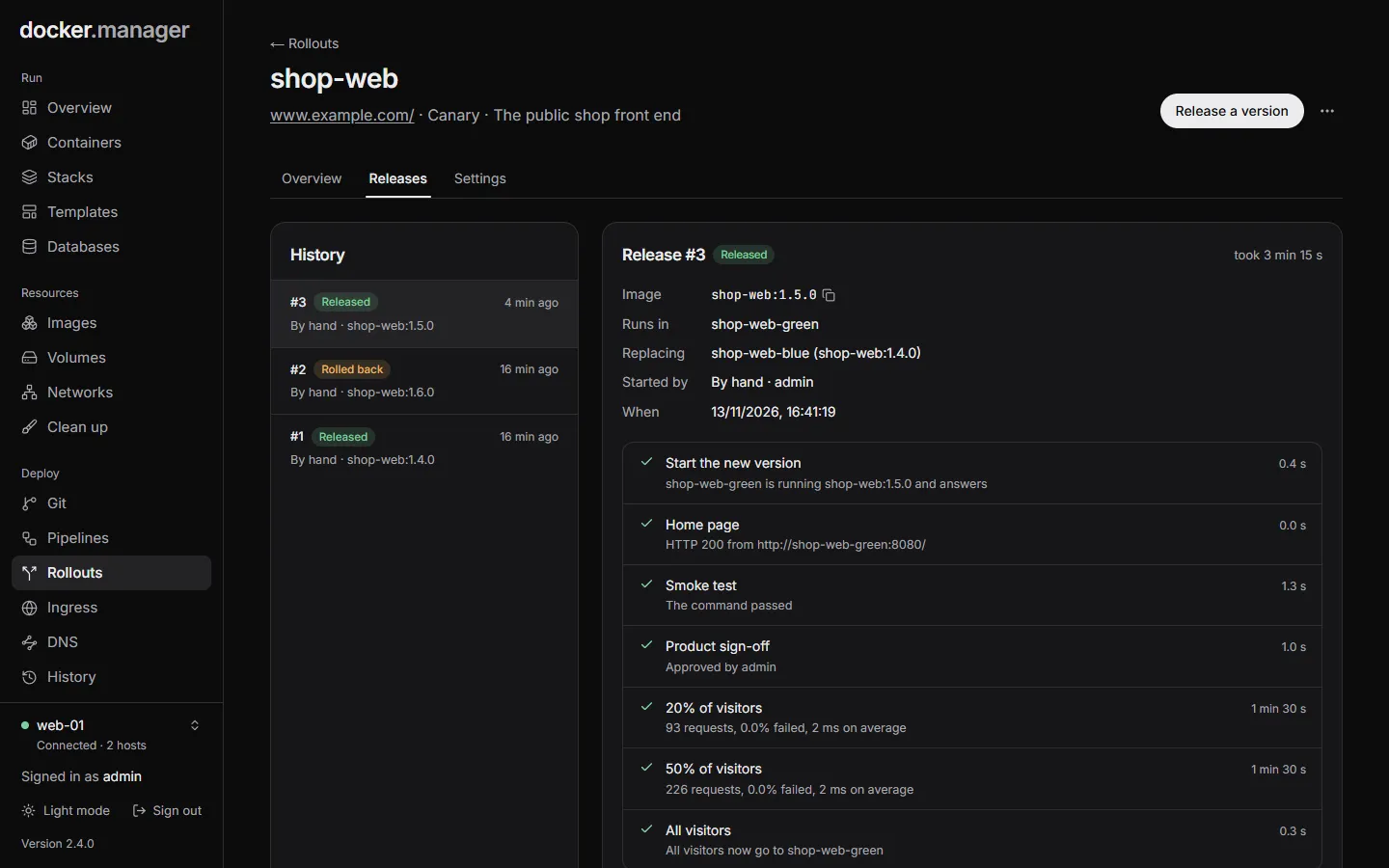
A release goes like this:
- The new version starts and must answer on its health path within the start time.
- The tests run against it. If a test fails, the new version is stopped and nothing changes for visitors.
- Visitors move over, all at once (blue/green) or step by step (canary).
- The new version is watched. If a limit is crossed and automatic rollback is on, visitors go back to the previous version.
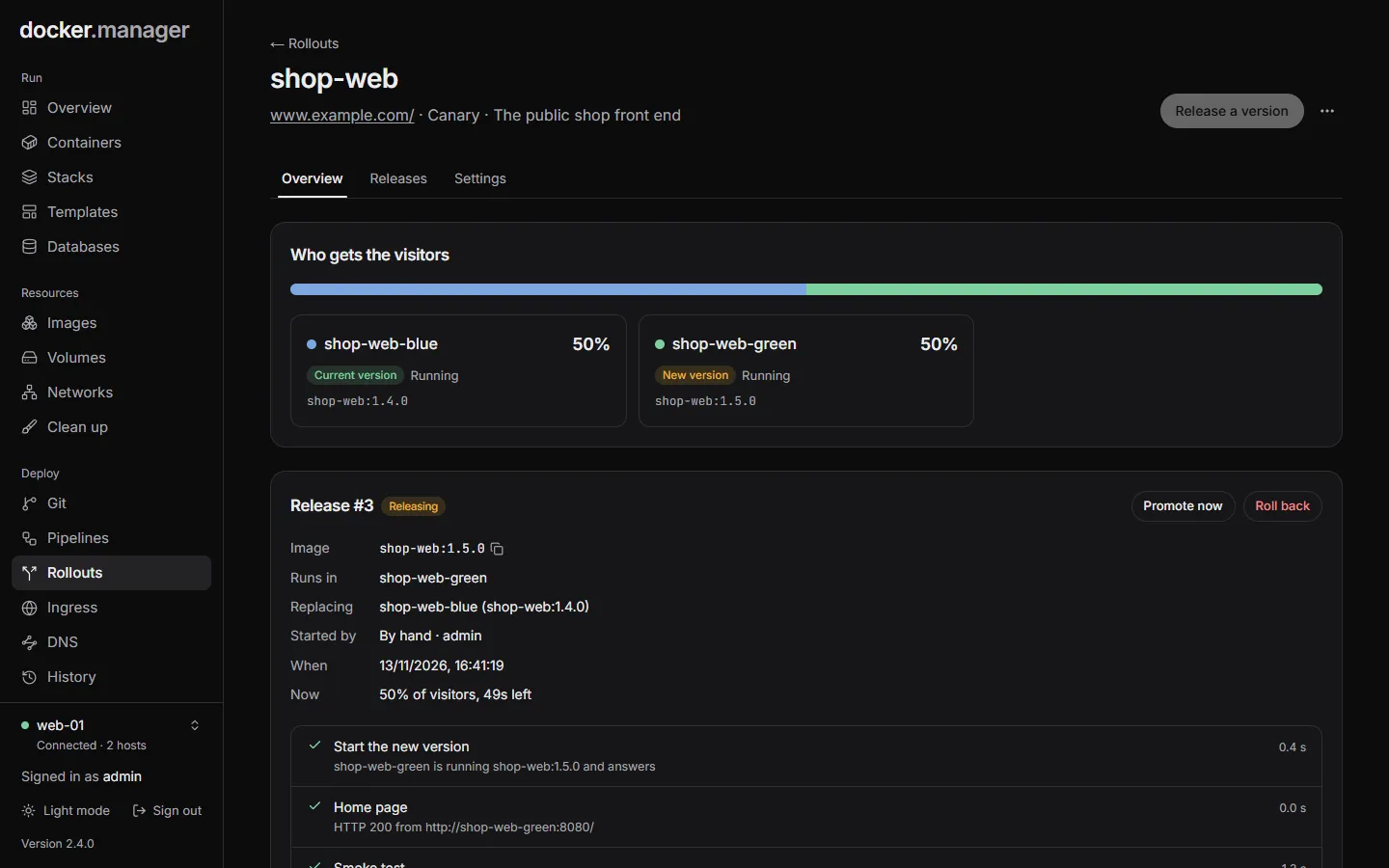
While a release runs, you can Promote now (canary) or Finish now (blue/green) to skip the remaining steps, or Stop it. Once the new version has visitors, stopping is Roll back: visitors go back to the previous version.
The Overview tab shows Who gets the visitors and, during a release, charts of the new version’s failed requests and requests per 10 seconds. The Releases tab lists each release with its tests, traffic steps and logs.
Roll back
Section titled “Roll back”After a release, Roll back to (the previous image) starts the previous version again and moves visitors back.
Deleting a rollout
Section titled “Deleting a rollout”Delete rollout removes the rollout, but the address keeps sending visitors to the current version as an ordinary ingress route. The containers stay; remove the idle one on the Containers page if you no longer need it.
In the configuration file
Section titled “In the configuration file”Rollouts can be described under rollouts in the configuration file. Applying
the file never starts a release. See the reference.