
Templates
Templates are ready-made setups for popular software. Pick one, check the settings, and it runs.
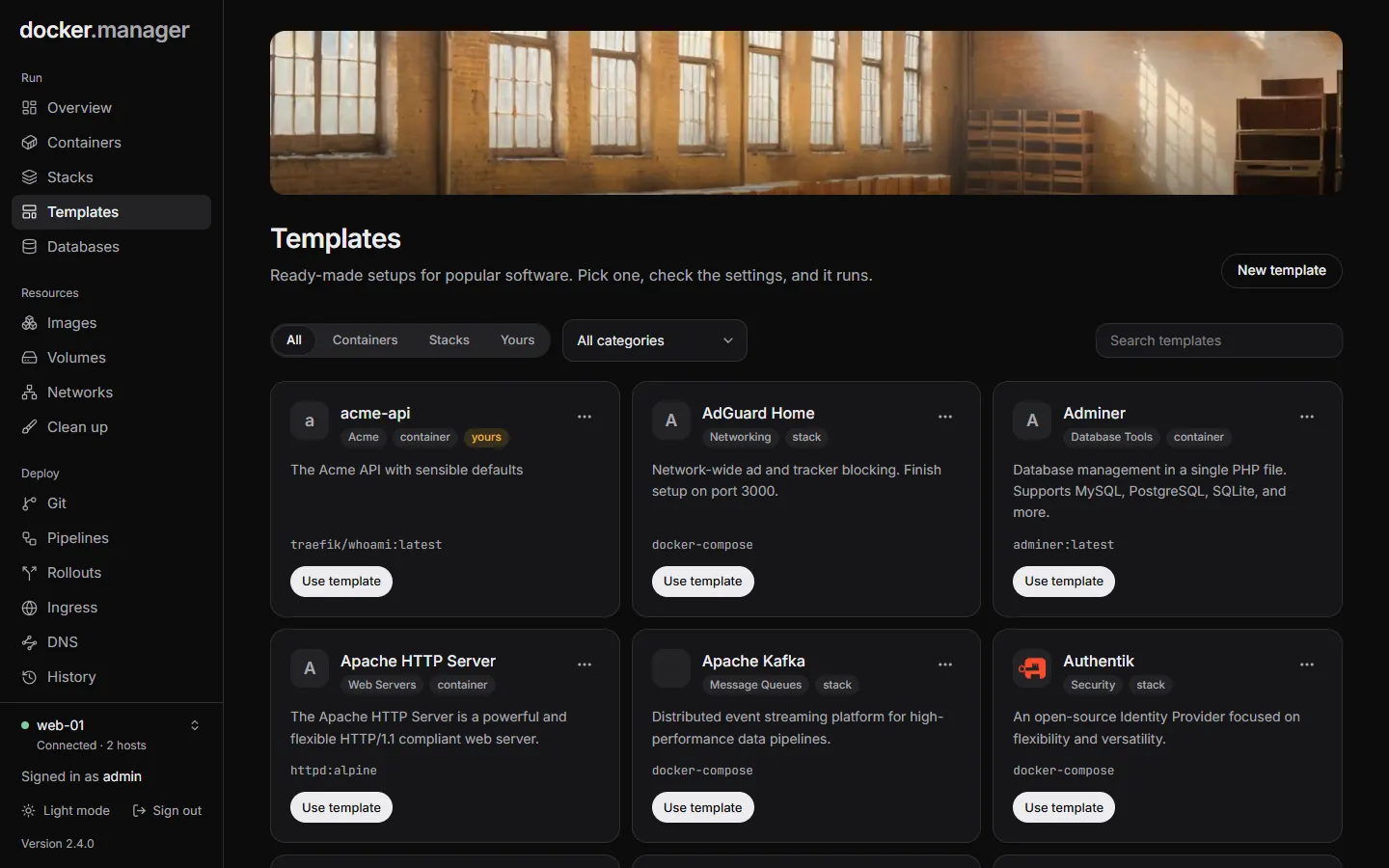
Docker Manager comes with 53 templates in 15 categories, including:
- Databases: PostgreSQL, MySQL, MariaDB, MongoDB, Redis, InfluxDB
- Web servers: Nginx, Apache HTTP Server, Caddy, Traefik, Nginx Proxy Manager
- Monitoring: Grafana, Prometheus, Uptime Kuma, cAdvisor, Dozzle, Netdata
- Development and automation: Gitea, GitLab CE, Jenkins, Code Server, n8n, Node-RED
- Home and media: Home Assistant, Jellyfin, Plex, Nextcloud, FileBrowser
- Security and networking: Vaultwarden, Authentik, WireGuard, Pi-hole, AdGuard Home, Cloudflare Tunnel
- And more: RabbitMQ, Apache Kafka, NATS, Elasticsearch, Meilisearch, Adminer, pgAdmin, phpMyAdmin, WordPress, Ghost, Watchtower, Diun, Mailpit
Most are single containers. Nine are Compose stacks (Authentik, WireGuard, Pi-hole, AdGuard Home, Cloudflare Tunnel, Apache Kafka, Mongo Express, WordPress and Watchtower).
Use a template
Section titled “Use a template”- Open Templates. Narrow the list with Type (All, Containers, Stacks or Yours), a category, or the search box.
- Choose Use template on the one you want.
- You get the new container or new stack form, filled in. Replace any placeholder values, like passwords; for container templates that have them, the page reminds you.
- Check the settings and create it.
A template’s menu also links to the software’s Documentation, when it has some.
Make your own
Section titled “Make your own”To save a setup you use often:
- Choose New template, or Duplicate on an existing one to start from it.
- Give it a Name and Description, and choose Single container or Compose stack.
- For a container, fill in the Image, and optionally Ports (
8080:80,53:53/udp), Environment (NAME=value, comma separated) and Volumes (data:/data). For a stack, paste the Compose file.
Your templates are marked yours and can be edited and deleted from their menu. The built-in ones can only be duplicated.
Templates can also be defined in the configuration file.