
Users and permissions
Users (administrators only) is where you add people and decide what they can do. Administrators can do everything. Everyone else can only do what their permissions, or their groups’ permissions, allow.
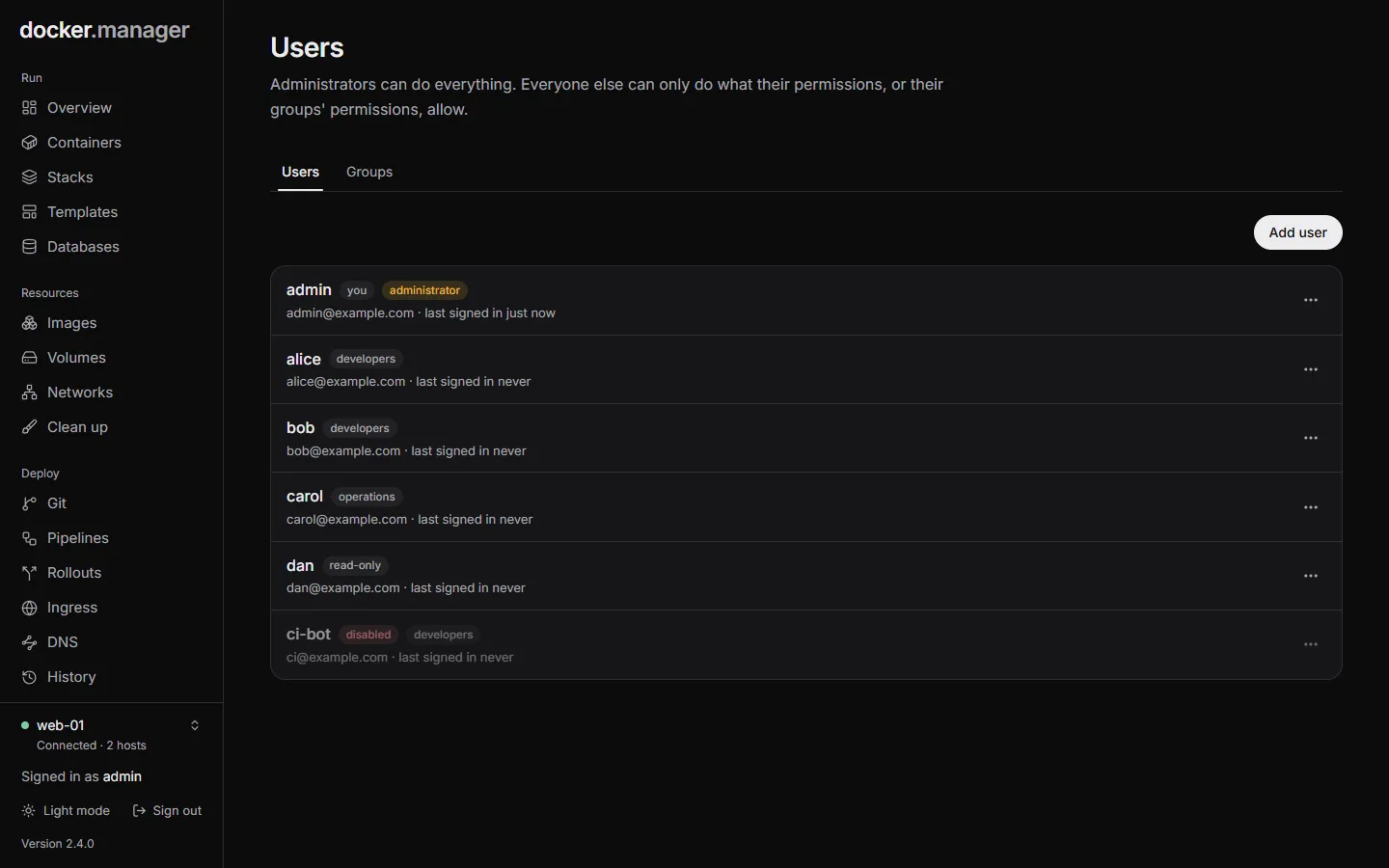
Add a user
Section titled “Add a user”- Open Users and choose Add user.
- Enter a Username and, optionally, an Email (used for notifications).
- Turn on Administrator only if they should be able to do everything, including managing users.
- Choose Add user.
Docker Manager shows a temporary password. Give it to them privately: it isn’t shown again. They choose their own password the first time they sign in. Until then, the user is marked temporary password.
A new user who isn’t an administrator has no permissions yet: they can sign in but see nothing. Give them permissions next.
Give permissions
Section titled “Give permissions”- In the user’s menu, choose Permissions.
- Under Grant a permission, choose:
- Area: what it’s about, like Containers, Stacks, Images, Volumes, Git repos or Ingress routes.
- Action: Everything, or one action, like List, Read, Start, Stop, Logs or Deploy. The actions offered depend on the area.
- Host: All hosts, or one host.
- Only this item (optional): a container or stack name, for example, to limit it to one thing. Leave it empty for all.
- Choose Grant. Repeat for each permission, then Done.
For example, to let someone look after one app on one server, grant Everything on Containers and on Stacks for that host, with Only this item set to the app’s stack and container names.
Remove a permission with the × next to it.
Groups
Section titled “Groups”Groups give the same permissions to several people.
- Open Users and choose the Groups tab.
- Under New group, enter a Group name (like
Developers) and choose Create. - Choose Permissions next to the group and grant permissions as for a user.
- On the Users tab, add people to it from each user’s menu with Add to ….
A user’s permissions are their own plus those of every group they’re in. Deleting a group removes the permissions its members had through it.
Manage users
Section titled “Manage users”Each user’s menu has:
- Edit: change their Username (used at their next sign-in) or Email (where their notifications go;
leave it empty for none). Two users can’t share an address. An address that can’t receive mail, like
admin@localhost, is shown in the list. - Permissions (not for administrators, who can already do everything)
- Make administrator or Remove administrator
- Disable or Enable: a disabled user is signed out and can’t sign in until enabled again.
- Reset password: they’re signed out and must choose a new password with the temporary one you give them.
- Add to … and Remove from … for each group
- Delete
You can’t make yourself not an administrator, disable yourself or delete yourself.
What only administrators can do
Section titled “What only administrators can do”Some things are limited to administrators whatever permissions someone has, because they could otherwise be used to gain more access:
- Managing users, groups and permissions
- Creating and editing Compose stacks (other users with permission can deploy, start and stop them)
- Creating and editing git repositories and pipelines
- Mounting host folders into containers
- Browsing the files in volumes
- Docker Manager’s own container: its logs, settings and console
- The pages Databases, Clean up, DNS, Observability, Security, Activity and Configuration
Your account
Section titled “Your account”Everyone can open Your account from their name at the bottom of the sidebar:
- Password: change your password (at least 8 characters). Your other sessions are signed out.
- Email: change or remove the address your notifications go to. Enter your password to confirm.
- Sessions: Sign out everywhere signs you out on every browser and device, including this one.
Users, groups and their permissions can also be described in the configuration file. Users managed that way are marked Config file and can only be changed through the file.