
Git and pipelines
Docker Manager can deploy your own code, not just images someone else published. There are two ways:
- Git deploys a repository in one step: it builds the Dockerfile or runs the compose file, on every push, on a schedule, or when you press Deploy now. Start here.
- Pipelines run build and test steps first, in stages, each step in its own container. Use them when “build and run” isn’t enough: unit tests, a build that produces a JAR, or a release through a rollout only after the tests pass.
Adding repositories and creating pipelines is for administrators. Other users can see and deploy them if their permissions allow.
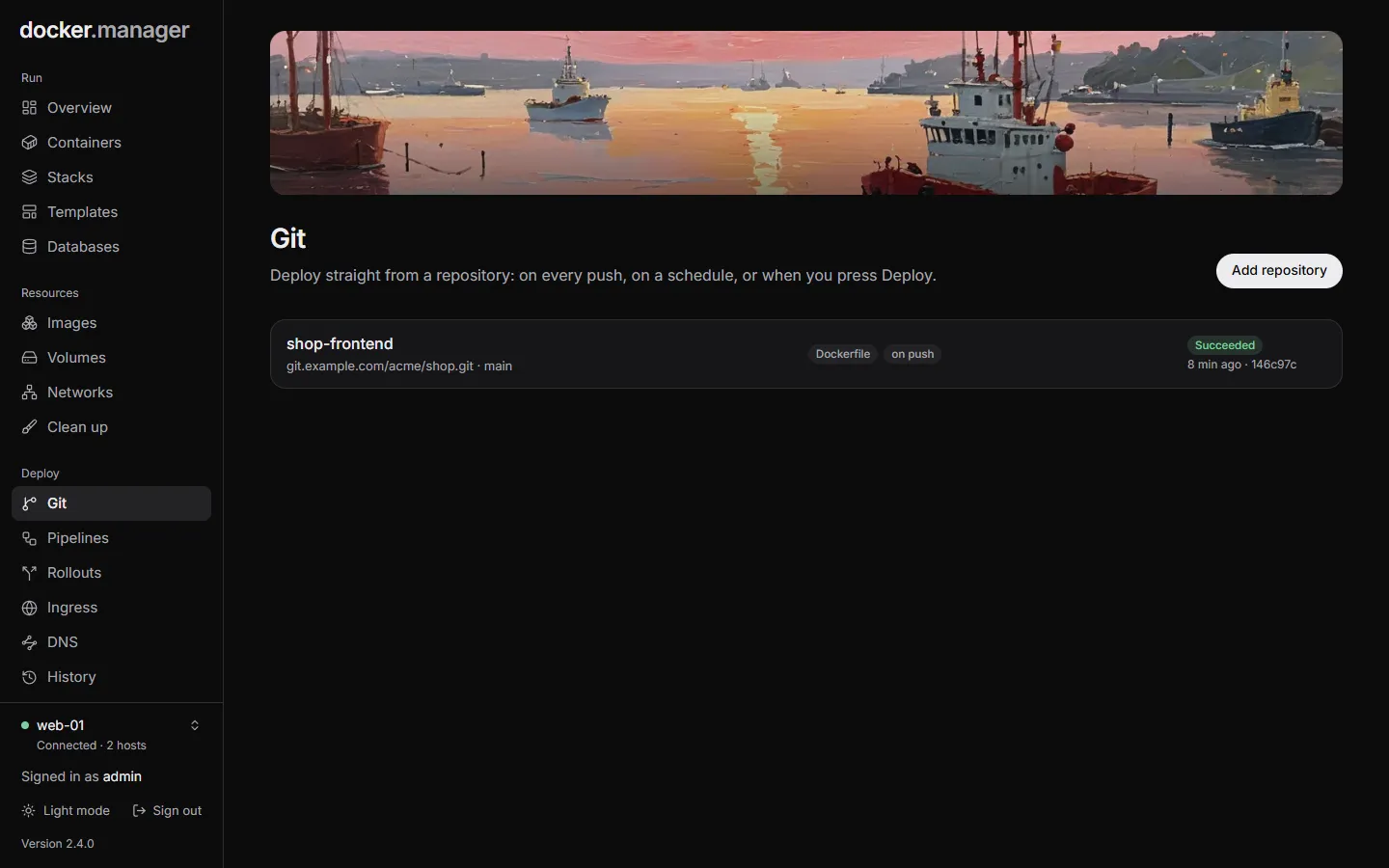
Add a repository
Section titled “Add a repository”Open Git and press Add repository.
Repository
- Name: shown in Docker Manager.
- Docker host: where it is built and deployed. It can’t be changed later.
- Repository URL:
https://github.com/owner/repo.gitorgit@github.com:owner/repo.git. - Branch: the branch to deploy,
mainby default.
Access
- Public: no sign-in.
- Access token: a personal access token with read access to the repository. Username depends on the Git
server: on GitHub your username; GitLab and most others accept anything (
oauth2is used when it’s empty); Bitbucket repository tokens usex-token-auth. - SSH key: an unencrypted private key (
BEGIN OPENSSH PRIVATE KEY). Add its public key to the repository as a read-only deploy key. The server’s host key is trusted the first time and checked after that.
Tokens and keys are stored encrypted. When editing, leave them empty to keep the saved ones.
How to deploy it
- Compose file: the repository’s compose file is deployed as a stack named after the
repository, and appears on the Stacks page. Leave Compose file empty to find it automatically
(
compose.yaml,docker-compose.ymland so on). - Dockerfile: the image is built from the Dockerfile you name (the build context is the repository root)
and tagged
:latestand with the commit. Then, under How to run it:- Replace the container: the previous container is replaced. If the new one fails to start, the old one keeps running. Set its Container name, Restart policy, Ports, Environment and Volumes here.
- Release with a rollout: each new image goes through a rollout: it starts next to the current version, is tested, and gets visitors with blue/green or canary. Create the rollout on the Rollouts page first; its container settings are used.
- Only build the image: the image is built and tagged, and nothing is started.
Automatic deploys
- Deploy on push (webhook): works with GitHub, GitLab, Gitea and Forgejo. See Webhooks below.
- Check for new commits regularly: for servers that can’t receive webhooks. Choose how often: every minute, 5 minutes, 15 minutes or hour.
Press the button at the bottom to save. Nothing is deployed until you press Deploy now or a push arrives.
Deploy and go back
Section titled “Deploy and go back”On a repository’s page:
- Deploy now deploys the newest commit of the branch.
- Deploy a specific commit takes a commit SHA on the branch, for example to go back to an earlier version.
- Check for new commits asks the Git server straight away. When the branch has moved on, the repository shows new commits on the Git page.
The Deployments tab lists each deployment with its commit, how it was started and its log, which you can follow live while it runs.
Webhooks
Section titled “Webhooks”With Deploy on push (webhook) on, the repository’s page shows a webhook URL once it’s saved (administrators can see and copy it). In your Git server’s webhook settings:
- Paste the URL. Use content type JSON and push events.
- Also set the webhook’s secret to the last part of the URL (after the final
/): the Secret on GitHub, Gitea and Forgejo, the Secret token on GitLab. Signed requests are checked and deploy the exact commit that was pushed; unsigned ones deploy the branch’s newest commit.
Keep the URL private: anyone who has it can start a deployment. Webhook URLs use the BASE_URL setting, so set it
to the address your Git server can reach (see Environment variables).
Pipelines
Section titled “Pipelines”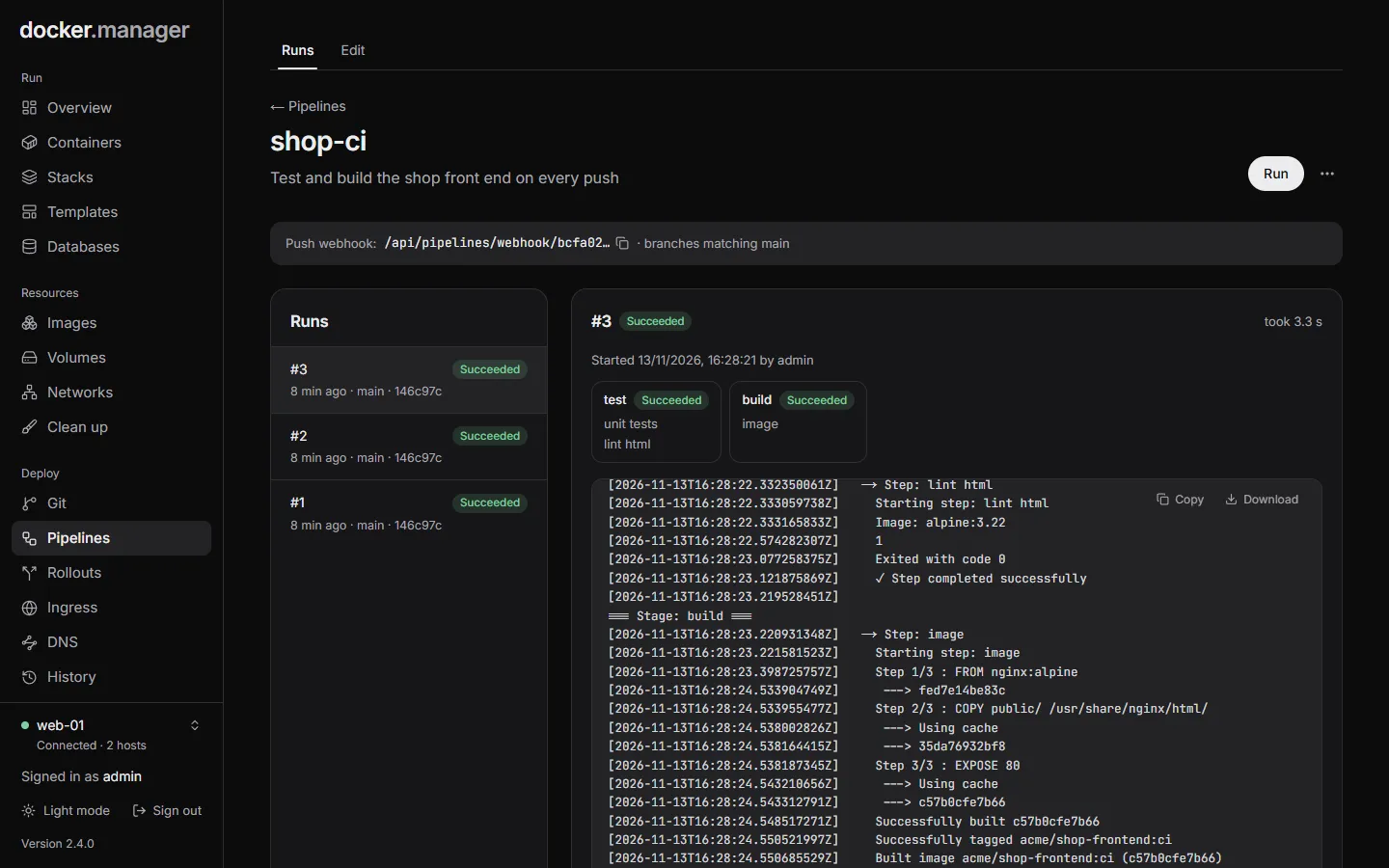
Open Pipelines and press New pipeline.
- Repository: checked out into
/workspacebefore the first stage. None runs without a checkout. - Runs on: the Docker host the steps run on.
- Run on push: gives you a webhook URL to add to the repository.
- Check for new commits regularly (with a repository): for servers that can’t receive webhooks. Choose how often: every minute, 5 minutes, 15 minutes or hour.
- Only for branches matching: a regular expression the whole branch name must match, such as
main|release/.*.
With Check for new commits regularly on, each check lists the repository’s branches and starts a run for every watched branch that has a new commit since its last run. Without a branch filter, only the repository’s branch is watched. A branch the pipeline has never run on is only noted the first time it’s seen, so turning polling on doesn’t start a run for every existing branch: runs start with its next commit. A commit a webhook run has already built isn’t run twice. Polling needs a Git server that speaks the usual (smart) HTTP or SSH protocol, like GitHub, GitLab, Gitea or Forgejo.
A pipeline is made of stages. In each stage, Steps run either One after another or At the same time. A stage can wait for other stages to finish first, and Stop the pipeline if it fails decides whether a failed step ends the run.
Every step runs in its own container with the workspace mounted at /workspace, so files one step writes are there
for the next. The kinds of step are:
| Kind | What it does |
|---|---|
| Shell script | Runs a script in a container (Alpine by default). |
| Build image | Builds a Dockerfile from the workspace and tags the image. |
| Compose | Runs docker compose with a file from the workspace (for example up -d). |
| Any image | Runs a command in an image of your choice, such as node:22 for npm test. |
| Java JAR | Runs a JAR with Java 21. |
| Release with a rollout | Releases an image through a blue/green or canary rollout on the same host. |
Each step can also have a Working directory (relative to /workspace), a Time limit (minutes), and Carry
on if this step fails.
Release with a rollout takes an image name that can use variables, such as my-app:${GIT_COMMIT_SHORT}. With
Wait for the release to finish on, the step fails if the release fails or is rolled back, so the pipeline’s
result tells you whether the new version reached visitors.
Variables in steps
Section titled “Variables in steps”Every step gets these environment variables:
| Variable | Value |
|---|---|
PIPELINE_ID, PIPELINE_NAME |
The pipeline |
BUILD_NUMBER, EXECUTION_ID |
This run |
GIT_REPO_URL, GIT_BRANCH |
The repository and branch, when the pipeline has one |
GIT_COMMIT, GIT_COMMIT_SHORT |
The commit being built, and its first 7 characters |
TRIGGER_TYPE, TRIGGERED_BY |
How the run was started, and by whom |
Running a pipeline
Section titled “Running a pipeline”Press Run on the pipeline’s page. Branch and Commit are optional: by default the run uses the repository’s branch and its newest commit. The Runs list shows each run with its steps and their live output. Runs also start from the push webhook, and from a rollout that uses the pipeline as a test.
Turn off stops a pipeline from running when triggered, Duplicate copies it, and Delete removes it.
In the configuration file
Section titled “In the configuration file”Repositories and pipelines can also be described in the configuration file,
under gitRepositories and pipelines. Applying the file never deploys or runs anything. See the
reference.