
Databases
Databases runs PostgreSQL servers (versions 16, 17 and 18, Alpine images) so that many apps can share one server instead of each running its own. Each app gets its own database and user, who can only see its own data.
Databases are managed by administrators.
Create a server
Section titled “Create a server”Open Databases and press New server.
- Name: lowercase letters, digits and dashes, 3 to 32 characters. The container is called
dm-pg-NAME, and apps reach it at that name. - Version: 18, 17 or 16. The version can’t be changed later: to move to a newer one, back up, create a new server and restore.
- Who can connect:
- Containers only: no port is published. Apps reach it on its own Docker network,
dm-db-NAME, atdm-pg-NAME:5432. - This machine: also published on a Port on
127.0.0.1, for tools on the server itself. - The network: published on every interface, for other machines.
- Containers only: no port is published. Apps reach it on its own Docker network,
Press Create server. The first start pulls the image.
Secure by default. Each server gets a random 32-character administrator password and uses SCRAM-SHA-256 for every
login. Every database is closed to everyone but its owner and the users you allow, including the built-in postgres
database. Passwords are sent to PostgreSQL as SCRAM verifiers, so they never appear in its logs. Daily backups that
keep the last 7 are on from the start.
Databases and users
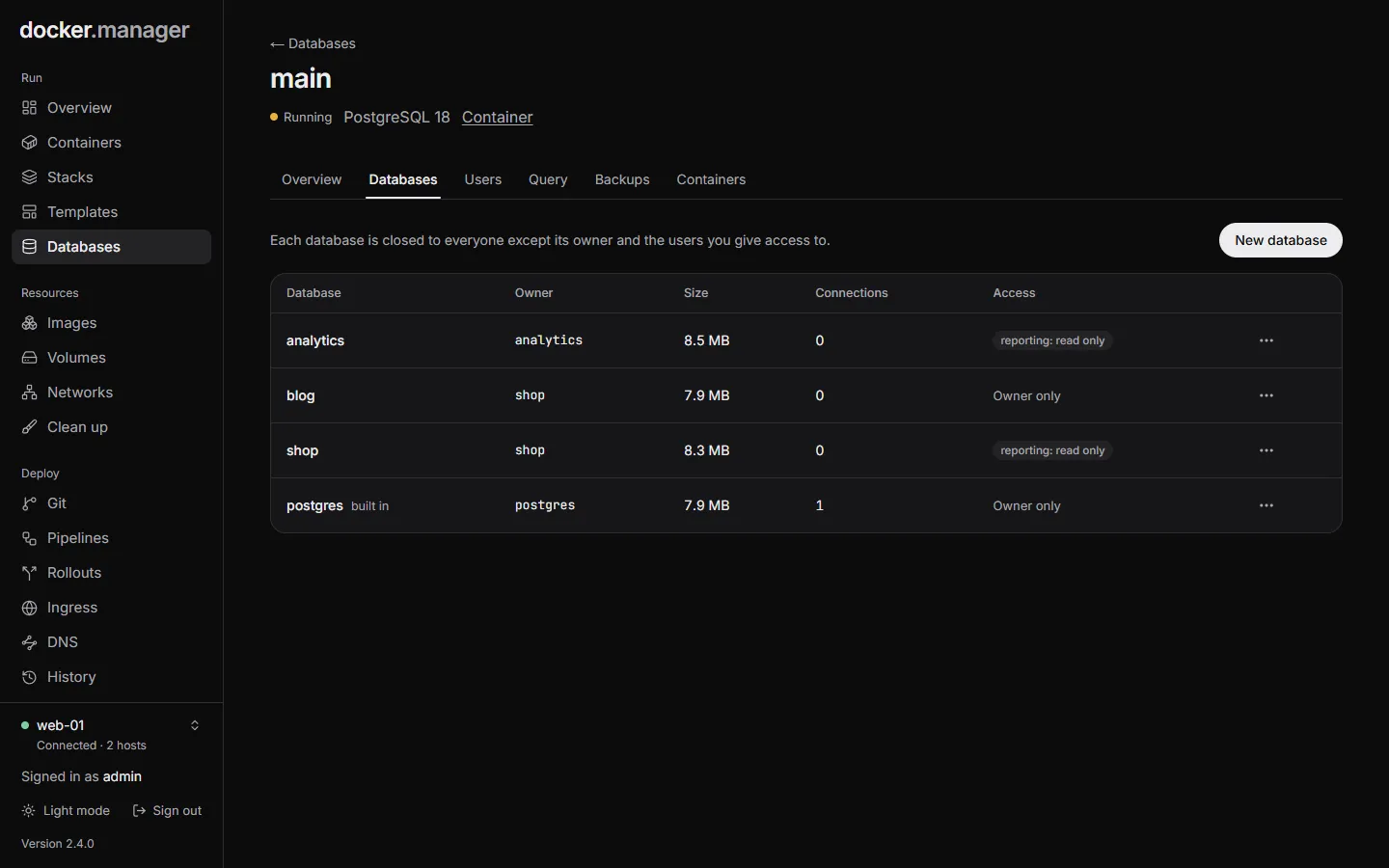
Section titled “Databases and users”On the server’s Databases tab, press New database. Give it a Name and an Owner:
- A new user: created with the database. A password is generated and shown once, together with a Connection URL for containers. Copy it now: it isn’t stored anywhere and won’t be shown again.
- An existing user: one you made on the Users tab.
Manage access gives other users Read or Read and write access to a database (or None). Back up this database makes a single-database backup on demand.
The Users tab lists the PostgreSQL users. New user generates a random 32-character password, or lets you Choose the password myself (at least 12 characters, no spaces). New password sets a new one. A user that still owns a database or tables can’t be deleted, so no data is ever deleted along with a user.
Connect your apps
Section titled “Connect your apps”The Overview tab shows how to connect: From containers (dm-pg-NAME:5432) and From outside (the
published port, if any). Change the port publishes the server on a port, or changes it, and restarts PostgreSQL.
On the Containers tab, Connect a container joins a container to the server’s network, so it can reach the server by name. Containers that docker compose re-creates lose networks added by hand, so for a stack, declare the network in its compose file instead. The tab shows the lines to add, for example:
services:  app:    environment:      DATABASE_URL: postgresql://USER:PASSWORD@dm-pg-main:5432/DATABASE    networks: [default, dm-db-main]
networks:  dm-db-main:    external: true
Query console
Section titled “Query console”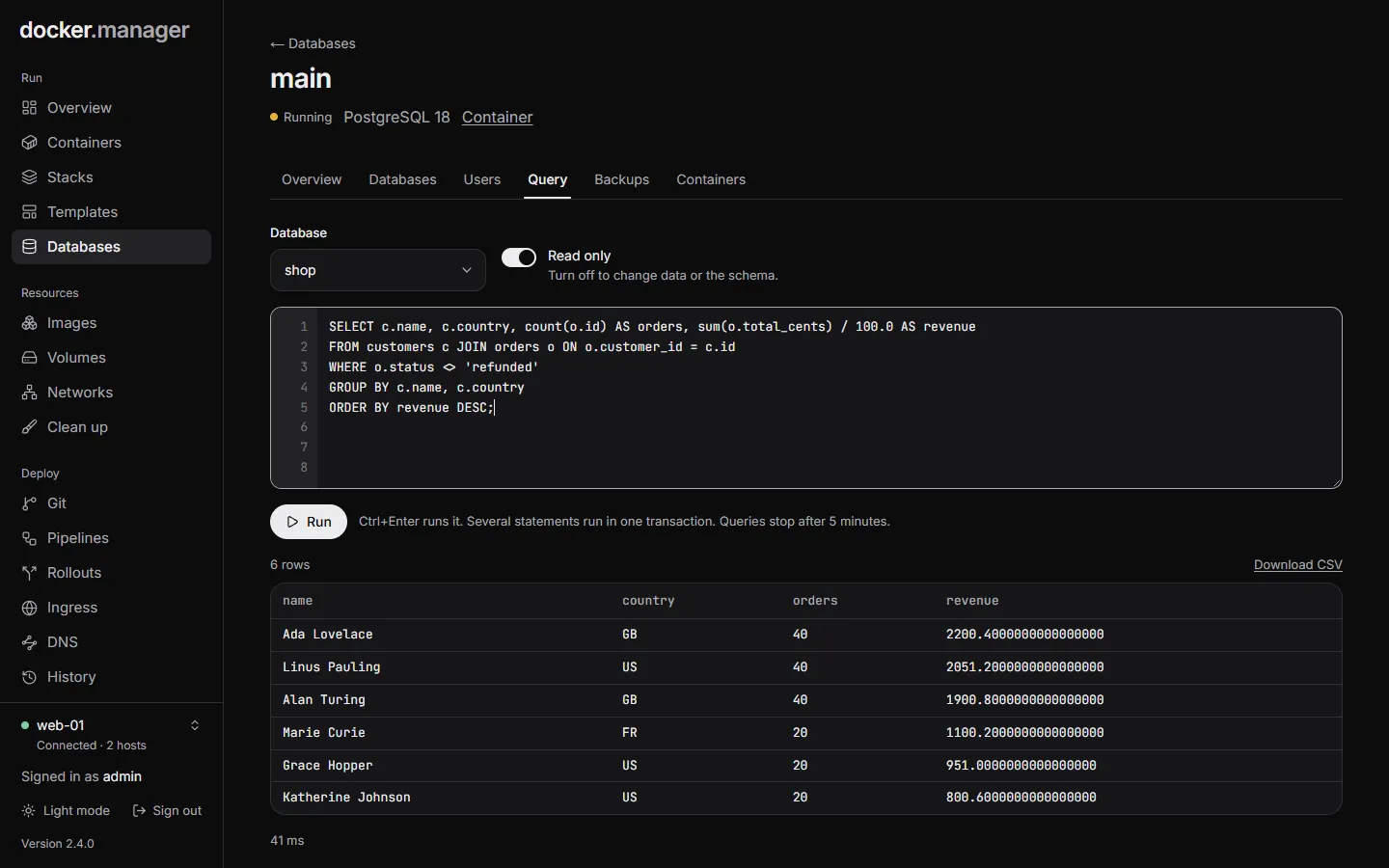
The Query tab runs SQL against a database you choose. It is Read only until you switch that off to change data
or the schema. Ctrl+Enter runs the query. Several statements run in one transaction, queries stop after 5 minutes, and
output over 8 MB is cut off (add a LIMIT).
Backups
Section titled “Backups”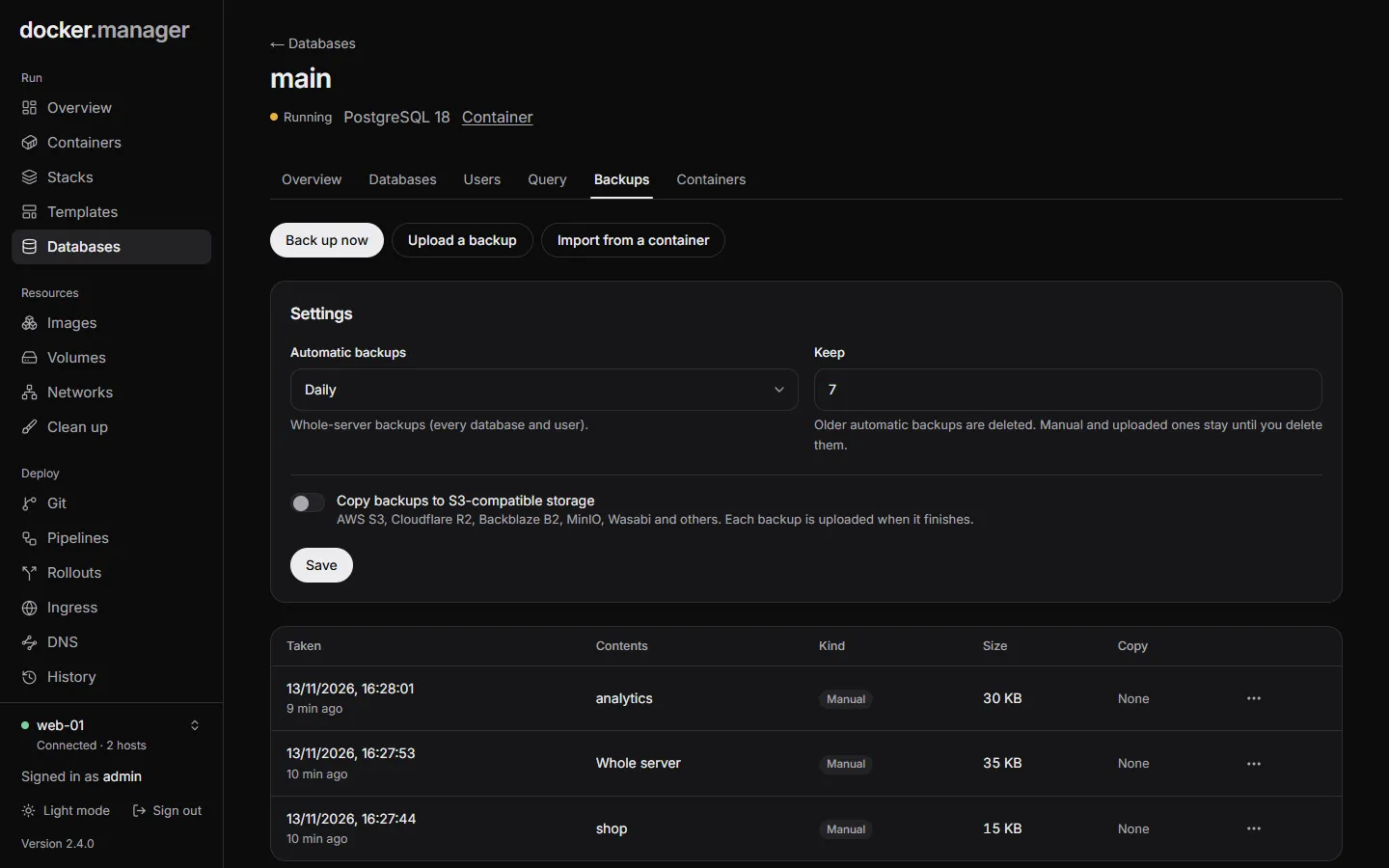
The Backups tab lists every backup with its size, kind and whether it was copied to S3.
- Automatic backups are whole-server backups (every database and user, made with
pg_dumpall). Choose how often (Off, every 6 or 12 hours, Daily, every 2 days or Weekly) and how many to Keep. Older automatic backups are deleted; manual and uploaded ones stay until you delete them. - Back up now makes a whole-server backup straight away. Back up this database (on the Databases tab) makes a
single-database backup in
pg_dumpcustom format. - Upload a backup takes one made elsewhere: plain SQL (gzipped or not) or
pg_dumpcustom format. - Download saves a backup to your computer.
Backups are stored in Docker Manager’s data volume under /app/database/db-backups.
Copies to S3
Section titled “Copies to S3”Turn on Copy backups to S3-compatible storage to upload each backup when it finishes: AWS S3, Cloudflare R2,
Backblaze B2, MinIO, Wasabi and others. Fill in the Endpoint (for AWS: https://s3.REGION.amazonaws.com),
Region (us-east-1 when empty; auto for R2), Bucket, Folder, Access key and Secret key (stored
encrypted), then Save and test. Copy to S3 sends an older backup by hand.
When a backup fails
Section titled “When a backup fails”When a backup fails, or its copy to S3 does, administrators get an email with the error (once an email server is set up). Each administrator can turn this off under Settings, Your notifications, Database Backup Failed.
Restore
Section titled “Restore”Press Restore on a backup.
- A whole-server backup replaces the databases it contains and leaves the others alone. Users in the backup are created if missing. Type the server’s name to confirm.
- A single-database backup is restored into the database you name under Restore into (replacing it if it exists), owned by the user you choose.
A backup of the whole server is taken first, so you can go back.
Import from a container
Section titled “Import from a container”Already running PostgreSQL in its own container? Import from a container (on the Backups tab) copies a database out of another PostgreSQL container on the same host and restores it here under a new owner:
- Choose the Container. Its User and Password are taken from its
POSTGRES_USERandPOSTGRES_PASSWORDwhen you leave them empty. - Press Find its databases and choose the Database to import, and its Name here.
The source container is only read, so you can switch the app over and remove the old container when you’re ready.
Remove a server
Section titled “Remove a server”Remove server removes the container and its network; apps that use it lose their connection. Its data volume
(dm-pg-NAME-data) and backups are kept unless you tick Also delete the data volume and Also delete its
backups. Kept backups come back if you create a server with the same name later.
In the configuration file
Section titled “In the configuration file”Servers, their users and databases can be described under databases in the
configuration file. The file creates users and databases when missing but never
drops them. See the reference.