
Security scanning
Security brings three tools together. Each runs in a short-lived container on the host it checks.
- Trivy (
aquasec/trivy) scans images for known vulnerabilities and shows which ones have a fixed version. - Docker Scout gives a second opinion on images.
- Docker Bench for Security checks the host, the Docker daemon’s settings and every running container against the CIS Docker Benchmark. It mounts the host’s configuration read-only and changes nothing.
Fixes change nothing until you confirm them, and each one can be undone from History. Security scans are for administrators.
Scan images
Section titled “Scan images”On the Images tab:
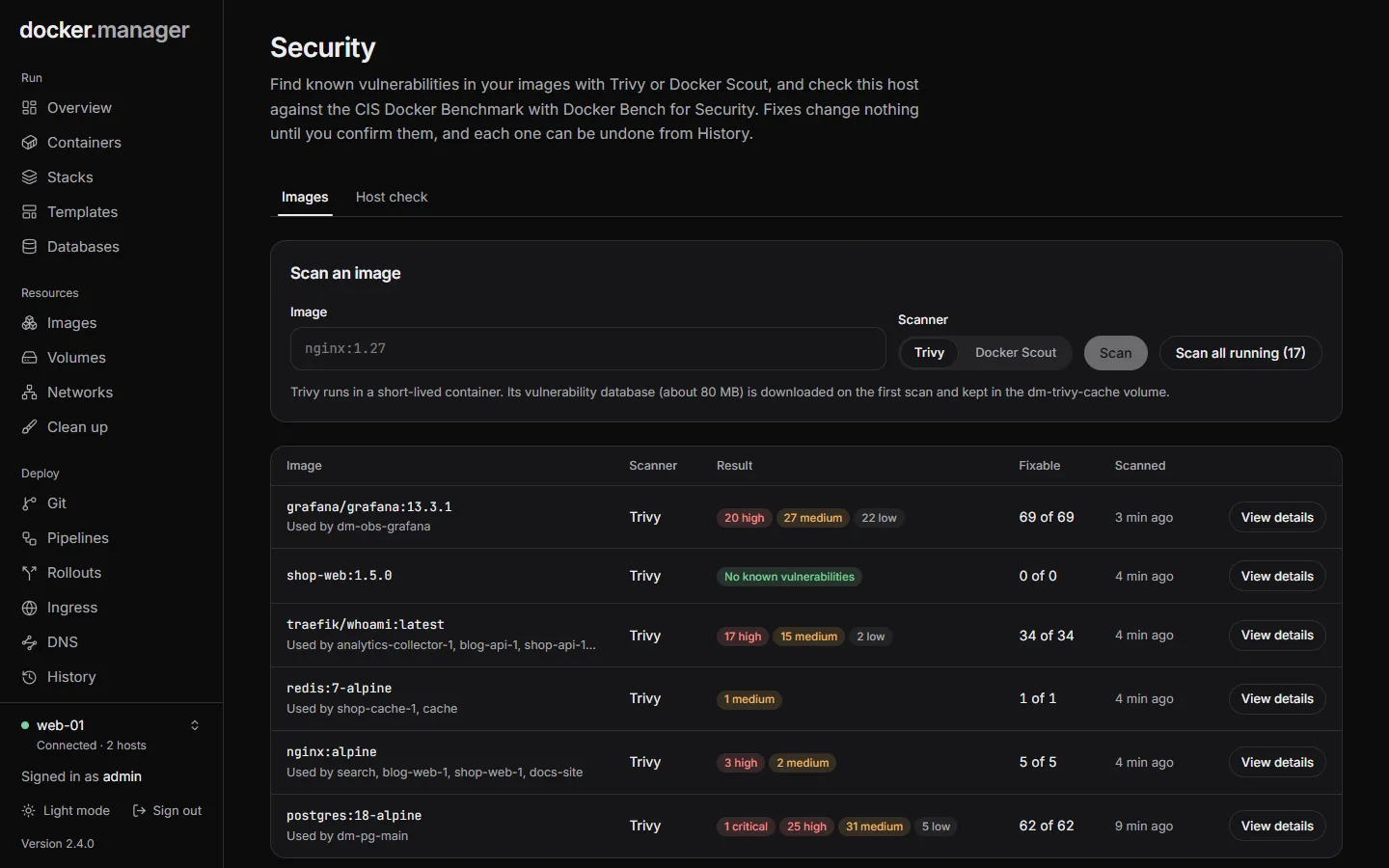
- Scan an image: enter an Image (such as
nginx:1.27), choose the Scanner, and press Scan. - Scan all running: scans every image your running containers use, two at a time.
Trivy keeps its vulnerability database (about 80 MB, downloaded on the first scan) in the dm-trivy-cache
volume between scans. Docker Scout needs a Docker Hub sign-in: add Docker Hub under
Registries (a personal access token works).
The list shows each image’s latest scan with its result and how many findings are fixable. View details opens the report.
Read a report
Section titled “Read a report”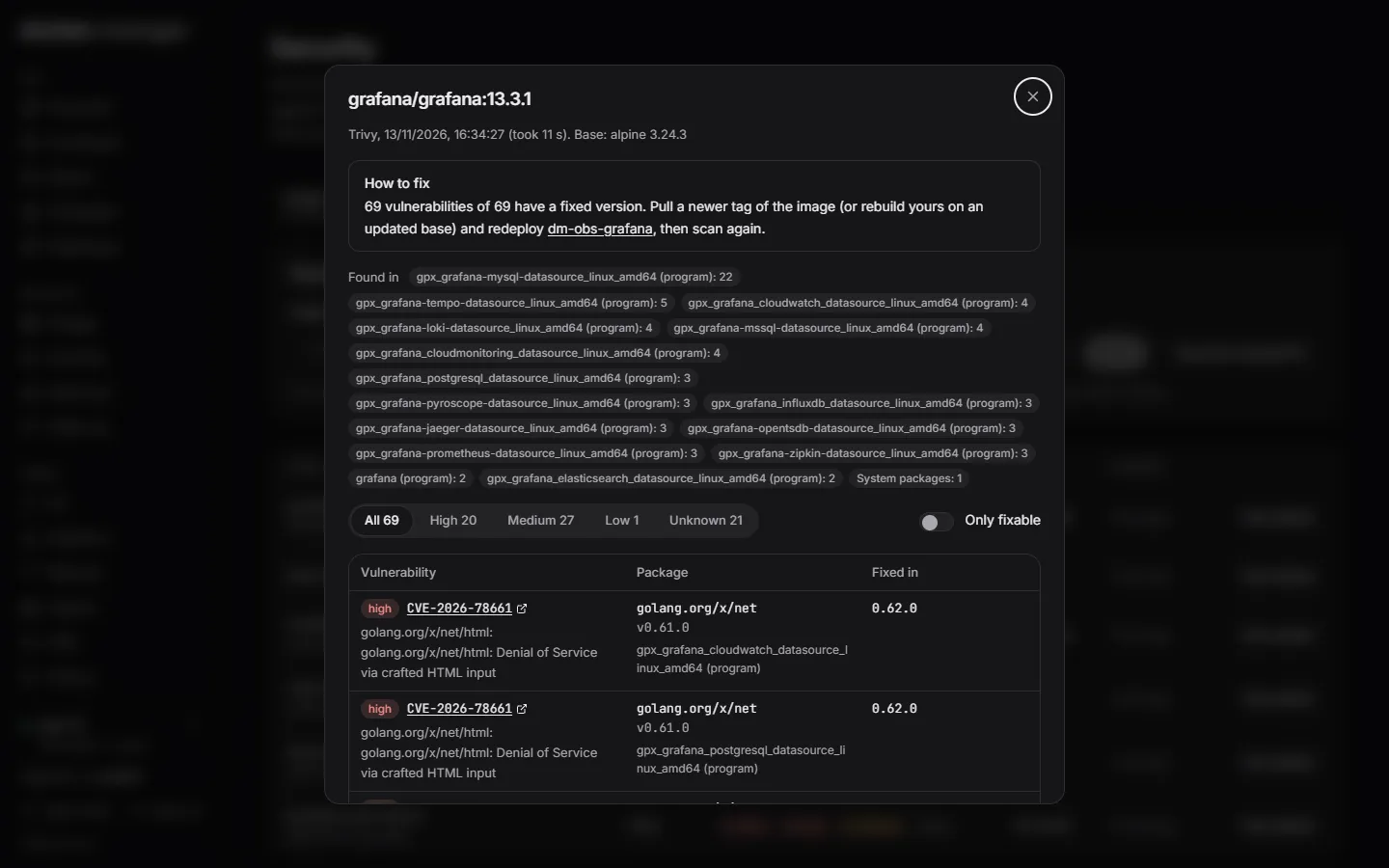
A report lists each vulnerability with its Package, Severity and the version it is Fixed in (or Not yet). Filter by severity, or tick Only fixable to see what an update would solve.
The report also says How to fix: how many findings have a fixed version, and which containers use the image. Pull a newer tag of the image (or rebuild yours on an updated base) and redeploy them. When an image is built on a base system that is no longer supported, the report says so: it gets no more security updates, so rebuild it on a supported base image.
Findings in Docker Manager’s own image are fixed by updating Docker Manager: on the server, run
docker compose pull && docker compose up -d in its folder once a newer version is out, then scan again.
Check the host
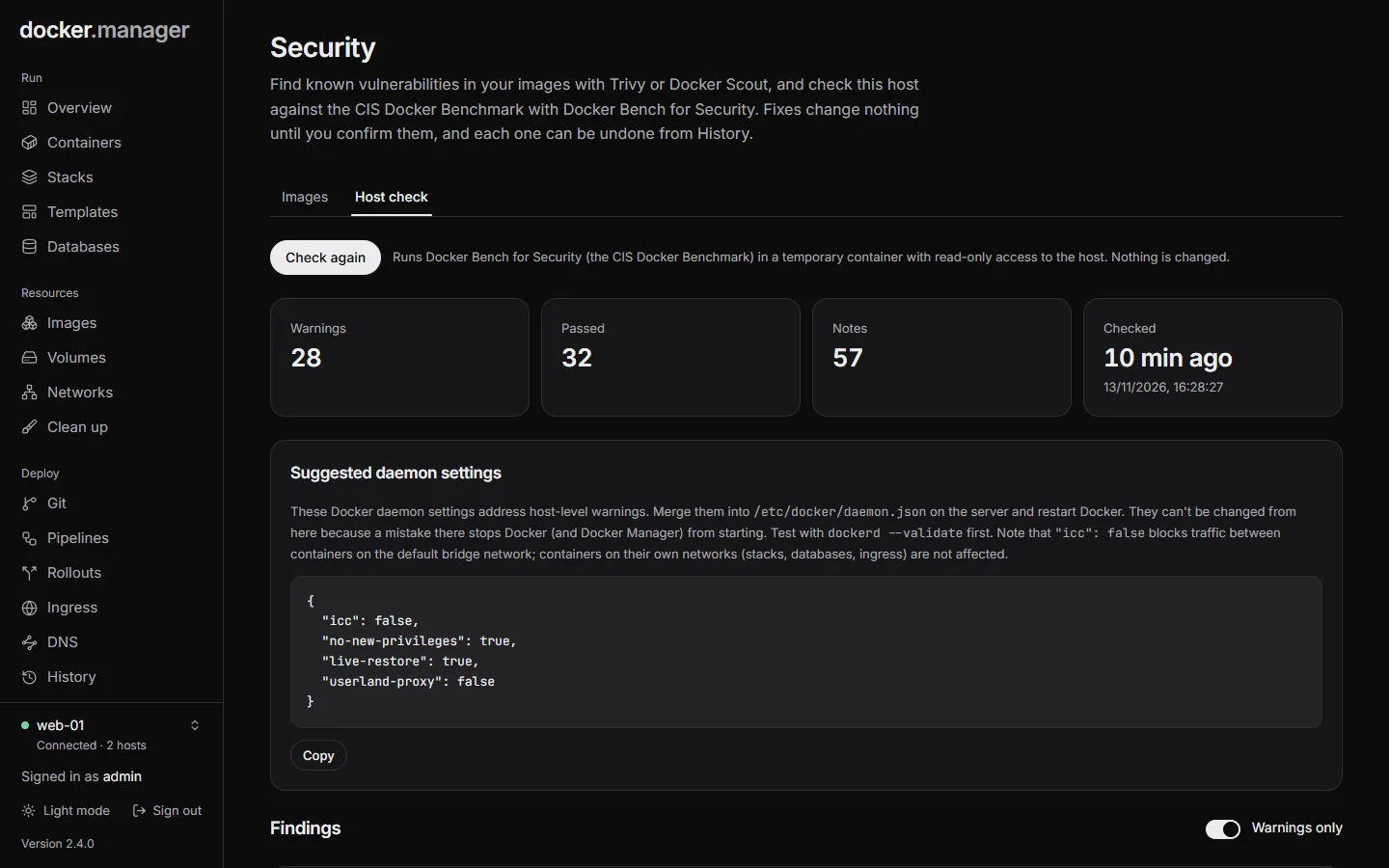
Section titled “Check the host”The Host check tab runs Docker Bench for Security. Press Check this host (or Check again). It looks at the host, the Docker daemon’s settings and every running container, and lists Warnings, Passed checks and Notes. Tick Warnings only to focus on what needs attention.
One-click fixes
Section titled “One-click fixes”Where a finding can be fixed safely, a Fix button explains exactly what will change and does nothing until you press Apply:
| Fix | What it does |
|---|---|
| Block privilege escalation | Adds the security option no-new-privileges:true, so processes can’t gain extra privileges, for example through setuid programs. |
| Limit the number of processes | Sets a process limit (1024 suggested), so a fork bomb or runaway process can’t exhaust the host’s process table. |
| Limit memory | Sets a memory limit, suggested from the container’s current use with headroom, so it can’t use up all of the host’s memory. |
Docker can’t change these on a running container, so the container is recreated with the same image, volumes, networks and settings. It is down for a few seconds; if the new container doesn’t start, the original is put back. Each fix is recorded in History, where you can undo it.
Containers that belong to a stack are changed in their compose file instead: you get the line to add.
Daemon settings
Section titled “Daemon settings”Findings about the Docker daemon itself come with Suggested daemon settings: a daemon.json to apply on the server
yourself, in /etc/docker/daemon.json. Check it with dockerd --validate before restarting Docker. Docker Manager
doesn’t apply these, because a mistake there would stop Docker from starting.
Image rules
Section titled “Image rules”To stop untrusted images from being used at all, see Image rules.